









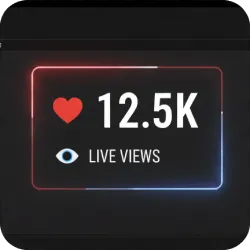
Youtube Livestream Live Counter
YouTube Live Stats is an open-source Lua script for OBS Studio that displays real-time YouTube stream statistics such as Likes, Views, and current Viewers directly in your scene through text sources. It is designed for reliability, cross-platform compatib
YouTube Live Stats (Lua Script)
YouTube Live Stats is an open-source Lua script for OBS Studio that displays real-time YouTube stream statistics Likes, Views, and current Viewers directly inside your scene using standard OBS text sources. It is designed to be reliable, easy to set up, and cross-platform, with no third-party apps or websites required.
What It Does
The script connects to the YouTube Data API and periodically fetches live statistics for your stream. Each metric is written to its own OBS text source, so you can place, style, or animate them independently just like any other text element.
If a required text source does not exist in the active scene, the script can automatically create it for you.
Features
- Live YouTube stats: Likes, Views, and current Viewers
- Text source output: renders directly in OBS scenes
- Auto source creation: missing text sources can be generated automatically
- Text engine support: works with both Text (GDI+) and Text (FreeType 2)
- Optional formatting sync: apply font and color styling across all stat sources
- Cross-platform: compatible with Windows, macOS, and Linux
- Open source & script-only: no plugins, no external apps
Requirements
- OBS Studio (Windows, macOS, or Linux)
- YouTube Video ID for the live stream
- YouTube Data API Key (free keys provide sufficient quota for personal use)
Installation
It is recommended to keep OBS scripts in a dedicated folder:
- Windows:
%AppData%\obs-studio\obs-scripts\ - macOS:
~/Library/Application Support/obs-studio/obs-scripts/ - Linux:
~/.config/obs-studio/obs-scripts/
How to Use
- Open OBS Studio.
- Go to Tools → Scripts.
- Click Add (+) and select
YouTube Live Stats.lua. - Enter your YouTube Video ID and YouTube API Key.
-
Assign the three text sources:
- Likes
- Views
- Viewers
- Click Refresh and Create Sources to generate or link the text sources.
- Optional: click Apply Formatting to synchronize font and color styling across all sources.
Formatting & Styling
Each stat is written to its own text source, so you can:
- Place stats anywhere in your layout
- Use different fonts or colors per metric
- Animate or group them with other overlay elements
If you prefer consistency, enable formatting synchronization so font and color changes apply automatically to all stat sources.
Best Use Cases
- Live stream overlays: show engagement metrics directly on screen
- Community streams: highlight growth with live likes and viewers
- Event streams: keep real-time audience visibility during broadcasts
- Minimal dashboards: clean stat display without external tools

