






OBS Fel Fire Shader Filter Dynamic & Turbulent Green Flame Effect
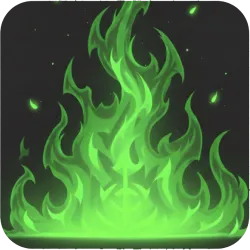
Unleash demonic energy with the Fel Fire shader for OBS Studio. This effect generates vibrant, animated green flames with customizable turbulence and shape distortion, perfect for dark fantasy themes, magical spells, or adding an intense, fiery border to
Screenshots
Preview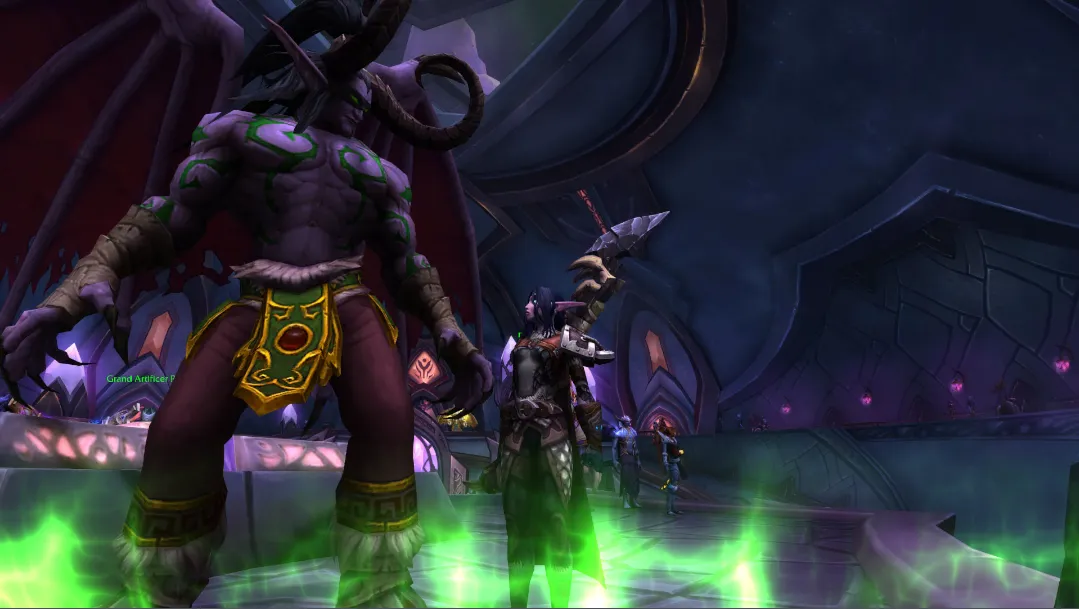
Media
OBS Fel Fire Shader Filter Dynamic & Turbulent Green Flame Effect in actionUnleash Demonic Energy with the Fel Fire OBS Shader
The Fel Fire shader is an intense visual effect for OBS Studio, designed to bring the chaotic, vibrant green flames of dark fantasy to your live streams and video content. This shader creates a dynamic, animated flame that rises from the bottom of your source, complete with customizable turbulence, speed, and a unique "curvy" distortion that makes the fire feel alive and menacing.
Visual Effects & Dynamic Behavior
This shader generates a stunning, upward-moving flame effect characterized by:
- Vibrant Green Hues: A striking blend of two customizable green colors gives the fire its signature "fel" appearance, reminiscent of dark magic and infernal energies.
- Turbulent & Jagged Flames: Utilizing a "ridged" noise function, the fire displays sharp, tendril-like edges, giving it a fierce and uncontrolled look.
- Smooth Shape Distortion: A unique warping effect subtly bends the flame shapes as they rise, adding an organic, almost liquid quality to the fiery chaos without making it seem jittery.
- Animated Flow: The entire fire effect continuously moves upwards, creating a seamless and captivating animation that adds constant energy to your scene.
Ideal for streamers engaged in fantasy RPGs, dark magic themes, or anyone wanting to add a powerful, eye-catching green fire element to their overlays, alerts, or scene transitions.
Configuration Settings
You can fine-tune the Fel Fire shader to perfectly match your desired intensity and style using the following uniform parameters:
- FelColor1 & FelColor2: Define the primary and secondary green colors that make up the flame. Adjust these to get the exact shade of "fel" you're looking for, from bright toxic green to deeper, ominous tones.
- FelSpeed: Controls how fast the flames rise. Default is 0.3. Increase for a more aggressive, fast-burning fire, or decrease for a slow, smoldering effect.
- FelHeight: Determines how high the flames extend up from the bottom of your source. Default is 0.3 (30% of the screen height).
- FellIntensity: Adjusts the overall brightness and prominence of the fire effect. Default is 0.9. Turn this up for a scorching glow or down for a more subtle, distant blaze.
- FelTurbulence: Controls the level of "jaggedness" and irregularity in the flame's edges. Default is 0.9. Higher values create wilder, more chaotic flames.
- ShapeDistort: A new slider that adds a "curvy" distortion to the flame shapes as they move, making them feel more organic and less rigid. Default is 0.05. Increase for more pronounced bending and swirling.
Installation Requirements
To use this shader, you must have the OBS Shaderfilter plugin installed. You can find the plugin and installation instructions at the OBS Project Resource Forum.
CRITICAL SETUP STEP: For the animations to render correctly, once you have added the filter to your source:
- Check the box labeled "Load shader text file".
- Ensure you UNCHECK the box labeled "Use Effect File (.effect)".
Failure to uncheck the .effect box will prevent the internal time variables from updating, resulting in a static image rather than dynamic, rising flames.
Discover More Filters
Looking to further customize your stream? You can find a wide variety of additional visual enhancements and shaders, including unique overlays and transitions, at OBSCountdown.com Filters. All shaders on that platform are compatible with the OBS Shaderfilter plugin mentioned above.

