







Multi-Color Arcane Frame OBS Shader Dynamic Fog Blasts & Energy Glow
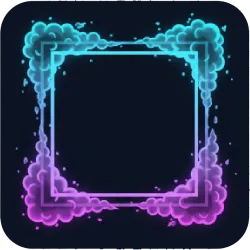
Unleash mystic power with the Multi-Color Arcane Frame OBS shader. This filter creates a vibrant, animated border with swirling energy and randomized fog blasts, perfect for magical themes, spellcasting effects, or an intense, dynamic stream aesthetic.
Screenshots
Preview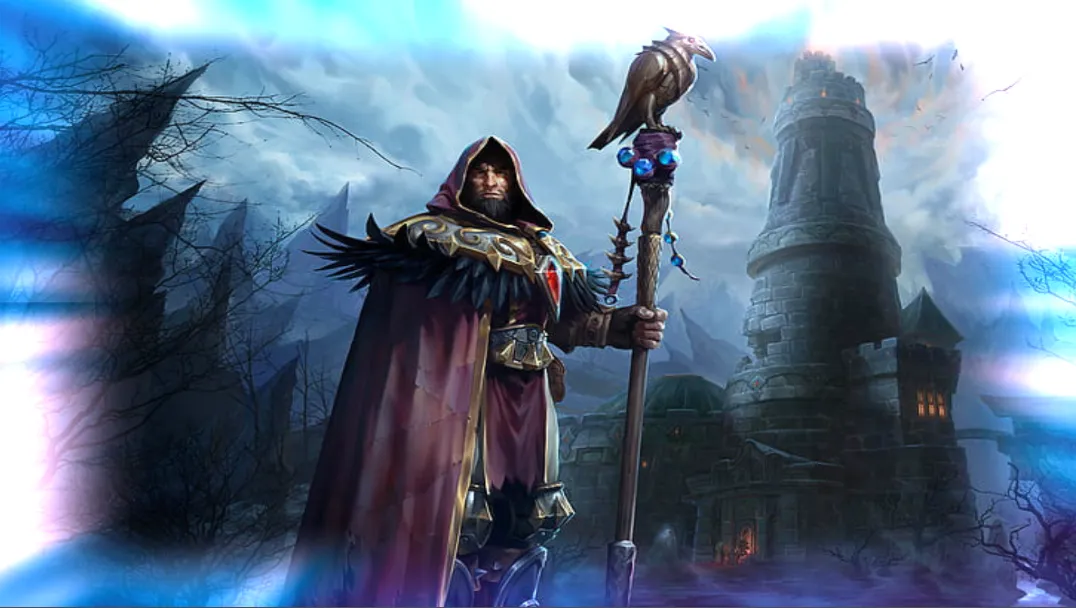
Media
Multi-Color Arcane Frame OBS Shader Dynamic Fog Blasts & Energy Glow in actionUnleash Mystic Energy with the Multi-Color Arcane Frame Shader
The Multi-Color Arcane Frame with Irregular Fog Blasts shader for OBS Studio is a powerful visual enhancement designed to infuse your live streams and recordings with an aura of magic and mystery. This filter goes beyond a simple border, creating a dynamic, animated frame filled with swirling energy and punctuated by irregular, magical fog blasts that emanate from random points, giving your content a truly unique and engaging look.
Visual Effects & Dynamic Behavior
This shader combines several captivating elements:
- Multi-Color Arcane Frame: A vibrant, animated border that cycles through a spectrum of four user-defined colors. The "energy" within the frame swirls and pulses, creating a sense of dynamic flow.
- Irregular Fog Blasts: At randomized intervals, soft, irregular "fog blasts" will expand from arbitrary points within your frame. These blasts fade out naturally, adding an element of surprise and further enhancing the magical ambiance.
- Pulsing Intensity: The overall intensity of the frame subtly pulses, adding another layer of organic movement to the effect.
Perfect for streamers focusing on fantasy games, magic themed content, or anyone wanting to add an epic, mystical border to their webcam or gameplay footage.
Configuration Settings
You can meticulously customize the Arcane Frame shader using the following uniform parameters:
- Color1, Color2, Color3, Color4: Define the four distinct colors that the arcane frame will blend between. Experiment with different palettes to match your stream's aesthetic from dark sorcery to celestial glow.
- FrameSize: Controls the thickness of the animated border. Default is 0.15. Adjust this to make your frame wider or narrower.
- EnergySpeed: Determines how fast the swirling energy within the frame moves. Default is 0.6. Increase for a frantic, high-energy effect, or decrease for a calm, flowing aura.
- Intensity: Governs the overall brightness and saturation of the frame and blasts. Default is 1.8.
- BlastFrequency: Sets the time (in seconds) between each irregular fog blast. Default is 5.0. Lower this for more frequent blasts.
- BlastSpeed: Controls how quickly the fog blasts expand. Default is 1.2. A slower speed gives a "heavy" fog feel, while faster creates a quick burst.
- FogJaggedness: Adjusts the irregularity of the fog blast edges. Default is 0.15. Higher values create more chaotic, jagged mist shapes.
Installation Requirements
To use this shader, you must have the OBS Shaderfilter plugin installed. You can find the plugin and installation instructions at the OBS Project Resource Forum.
CRITICAL SETUP STEP: For the animations to render correctly, once you have added the filter to your source:
- Check the box labeled "Load shader text file".
- Ensure you UNCHECK the box labeled "Use Effect File (.effect)".
Failure to uncheck the .effect box will prevent the internal time variables from updating, resulting in a static image rather than a dynamic, animated frame.
Discover More Filters
Looking to further customize your stream? You can find a wide variety of additional visual enhancements and shaders, including unique overlays and transitions, at OBSCountdown.com Filters. All shaders on that platform are compatible with the OBS Shaderfilter plugin mentioned above.

