








Minecraft Stream Starting Soon Overlay for OBS
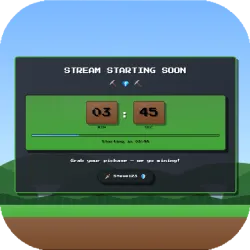
A professional Minecraft “Stream Starting Soon” overlay for OBS Studio with an animated countdown timer, progress bar, Enderman corner faces, and a Minecraft landscape background. Fully customizable via config.json
Screenshots
Preview
Minecraft Stream Starting Soon Overlay (OBS Studio Browser Source)
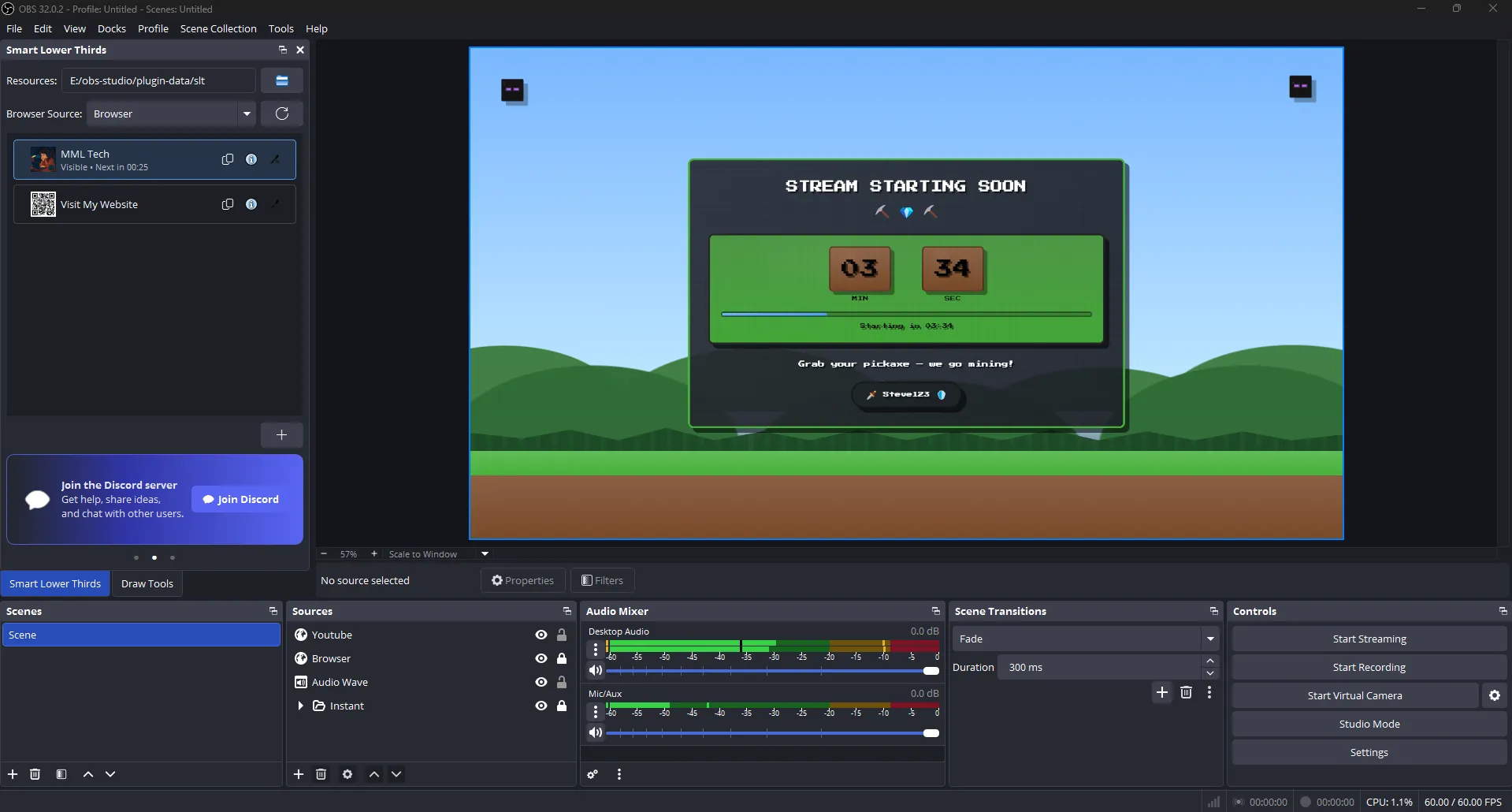
The Minecraft Stream Starting Soon Overlay by MML Tech is a production-ready, pixel-inspired OBS Studio overlay designed for creators who want a clean, high-impact Minecraft look before going live. It features a smooth animated countdown with a progress bar, animated Enderman faces in the top corners, and a Minecraft-style landscape background (sky, clouds, hills, treeline, and textured ground) that feels like a modern “Minecraft intro screen” for your stream.
This overlay runs as an OBS Browser Source and is easy to personalize using a simple
config.json file no coding required. Update your stream title, subtitle, streamer name, colors,
fonts, and countdown duration in seconds, and the overlay updates instantly for a professional result.
Key Features
- Stream Starting Soon countdown with improved UI styling and smooth digit transitions
- Progress bar that visually shows time remaining
- Animated Enderman faces (floating + blinking) for an authentic Minecraft vibe
- Minecraft landscape background with clouds, hills, treeline, and textured ground
- Config-driven customization via
config.json(colors, text, fonts, duration) - Pixel-inspired design suitable for Minecraft, survival, hardcore, SMP, and modded streams
Perfect For
- Minecraft livestreams (Survival, Hardcore, SMP, Speedruns, Modpacks)
- “Starting Soon” scenes and stream intro screens
- Creators who want a clean, professional overlay without heavy setup
How To Use in OBS Studio
- Add a Browser Source to your scene
- Load the overlay file (local or hosted URL)
- Edit
config.jsonto customize title, subtitle, name, colors, and countdown duration - Set your canvas size (e.g., 1920×1080) and you’re ready to go

