










MapleStory Stream Starting Soon Overlay for OBS Studio
A MapleStory-inspired “Stream Starting Soon” overlay for OBS Studio Browser Source with falling maple leaves, pixel-style timer, cute slimes, and a retro UI panel fully controlled via config.json.
Screenshots
Preview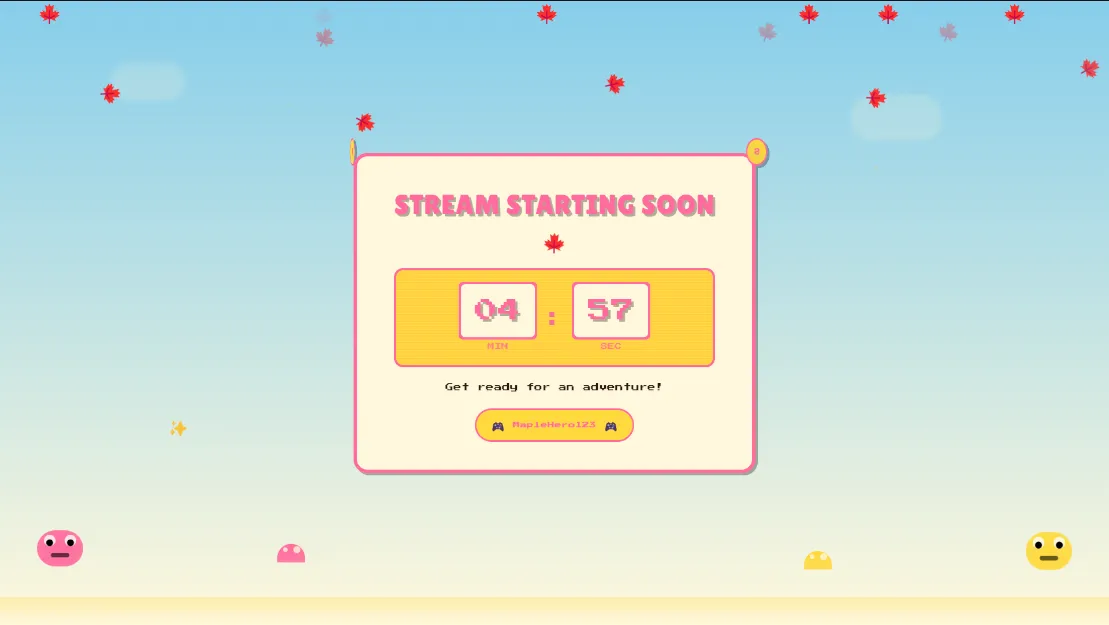
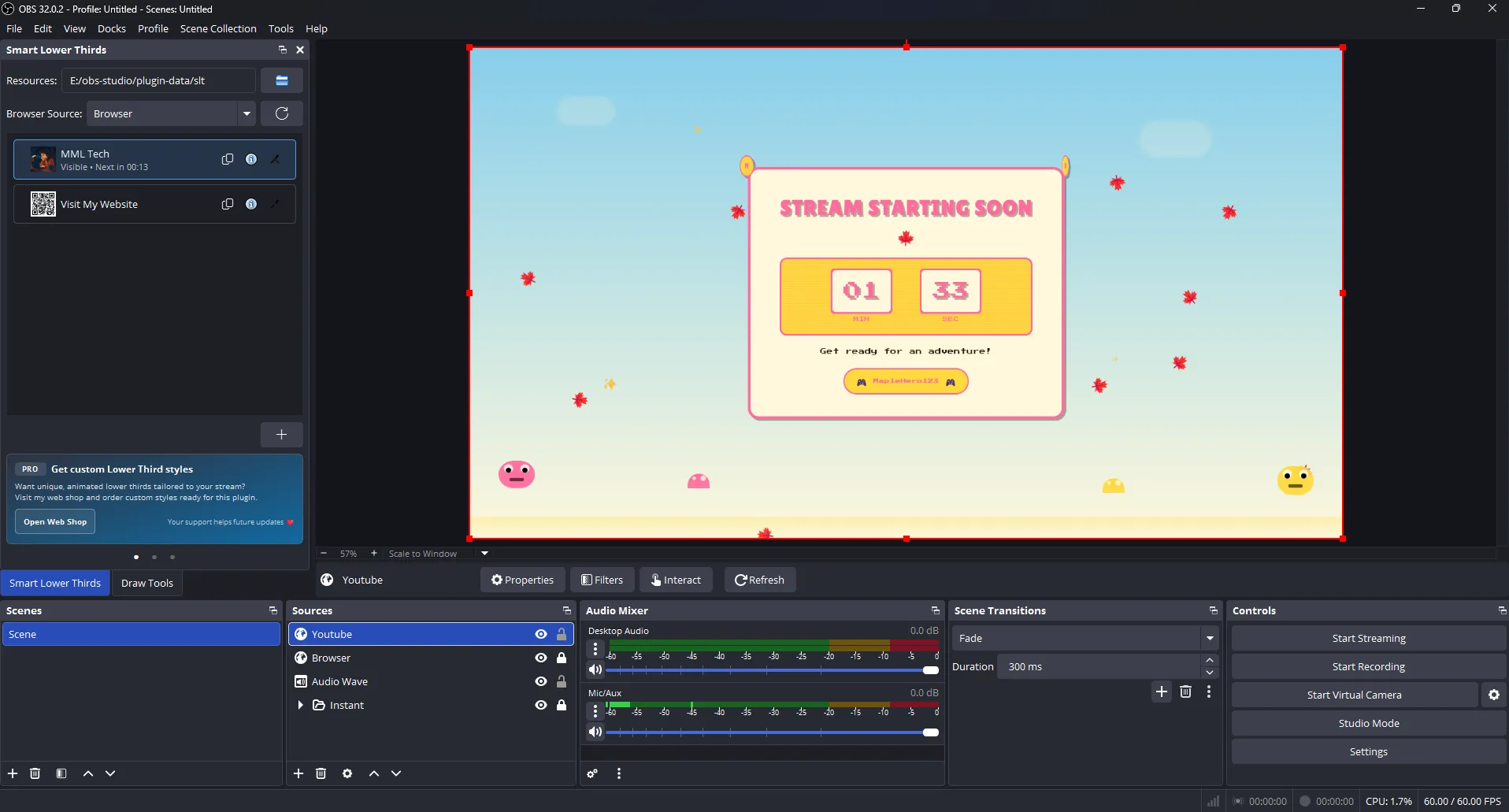
MapleStory Stream Starting Soon Overlay (OBS Studio Browser Source)
The MapleStory Stream Overlay by MML Tech is a playful,
retro “Starting Soon” overlay for OBS Studio inspired by cozy, colorful, pixel-era UI.
It features falling maple leaves, sparkle accents,
bouncing slimes, and a clean, readable pixel-style countdown timer
inside a themed panel. Everything is customized via a single config.json file, so you can
match your channel colors and text without editing the HTML.
What It Does
This overlay runs as an OBS Browser Source using the Local File workflow.
You add the HTML file to OBS, then edit config.json to configure the overlay’s
title, subtitle, streamer name, and the entire
theme palette. The animated background (leaves, sparkles, and character-style decorations)
keeps viewers engaged while the countdown communicates exactly when the stream is starting.
Key Features
- MapleStory-inspired vibe: warm colors, cozy layout, retro/pixel UI styling
- Animated maple leaves: continuous falling leaves effect for motion and atmosphere
- Cute scene elements: bouncing slimes + hopping mushrooms + sparkles
- Pixel countdown timer: minutes/seconds display with blinking colon
- Readable panel layout: title + timer + subtitle + streamer name
- Config-driven: edit
config.jsononly (no HTML edits required) - Theme controls: background, surface, primary/secondary accents, text color
- Typography controls: font family + scalable font sizing
- OBS-ready: designed for OBS Studio Browser Source (Local File)
Requirements
- OBS Studio: latest version recommended
- Overlay files: HTML +
config.jsonin the same folder - Browser Source: add via Local File for plug-and-play usage
How to Add the Overlay to OBS Studio
- Open OBS Studio.
- Click + in Sources and choose Browser Source.
- Name it (example: Maple Starting Soon).
- Enable Local File.
- Select the overlay HTML file.
- Set the resolution:
- Width: 1920
- Height: 1080
- Click OK.
How Configuration Works
This overlay is built for a beginner-friendly workflow: edit config.json, save, and refresh
the Browser Source if needed. Configuration options typically include:
- Text:
main_title,subtitle,streamer_name - Theme:
background_color,surface_color,primary_accent,secondary_accent,text_color - Typography:
font_family,font_size
Countdown Behavior
The timer is presented as a bold pixel-style readout intended for “Starting Soon” scenes. It updates once per second and remains highly readable even with animated elements running in the background.
Styling & Branding Tips
- Match your channel palette: set primary/secondary accents to your brand colors
- Use strong contrast: keep text color dark enough against the surface color
- Keep the title short: pixel fonts look best with concise headlines
- Use cozy subtitles: “Grab a snack”, “Party up soon”, “Warm up time”
Best Use Cases
- Cozy streams: RPG, MapleStory, variety, and chill community sessions
- Starting Soon scenes: warm intro screen with personality
- Creator branding: a consistent “cute pixel” theme controlled via one config
Common Issues & Fixes
- Leaves don’t appear: ensure the HTML is allowed to run JavaScript in OBS Browser Source
- Changes not applying: refresh the Browser Source in OBS after editing
config.json - Fonts not loading: allow external resources or replace with system-safe fonts

