







Magical Color Mist OBS Shader Filter - Dynamic Animated Border & Glow Effect
A stunning Magical Color Mist effect for OBS Studio. This shader generates a dynamic, flowing mist border based on your source colors, perfect for adding a mystical or high-energy atmosphere to your live stream or video recordings.
Screenshots
Preview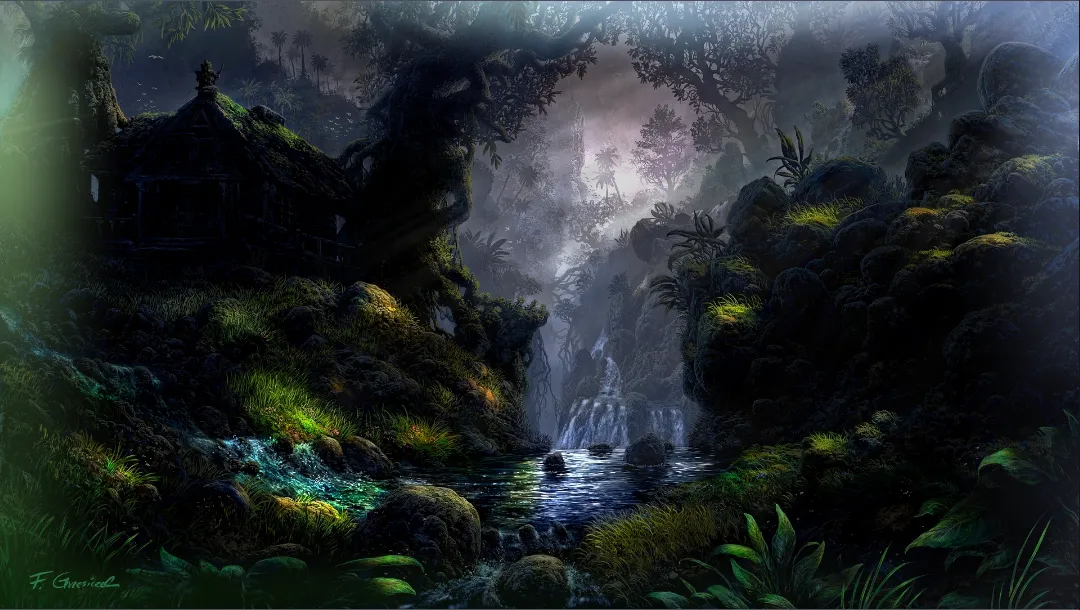
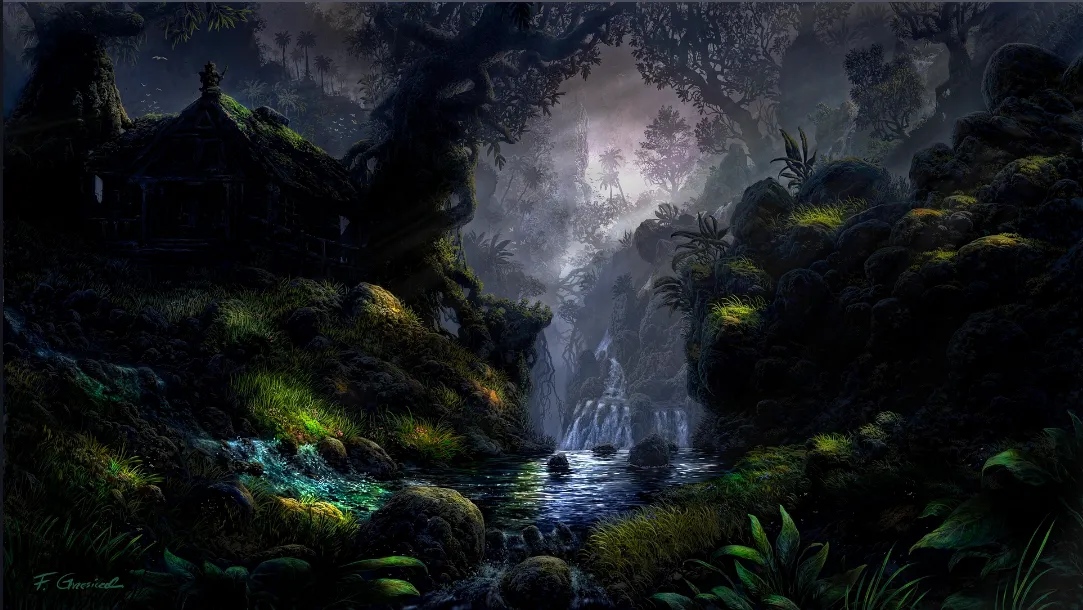
Media
Magical Color Mist OBS Shader Filter - Dynamic Animated Border & Glow Effect in actionEnhance Your Stream with the Magical Color Mist Shader
The Magical Color Mist is a high-quality shader designed for OBS Studio that adds a sophisticated, atmospheric glow to your video sources. Unlike static overlays, this effect dynamically samples the colors from the corners of your source to create a harmonious, flowing mist that frames your content. Whether you are a gamer looking for a "mana" or "power" aura, or a creative streamer wanting a dreamlike aesthetic, this filter provides a professional edge.
Visual Effects & Behavior
This shader works by calculating a 2D noise field that moves vertically over time, simulating the appearance of rising steam or magical energy. It targets the edges of your source using a smooth-step border mask, ensuring the center of your content remains clear while the perimeter glows with an animated gradient. The colors are automatically blended from the Top-Left, Top-Right, Bottom-Left, and Bottom-Right pixels of your source, making the effect look naturally integrated with your branding.
Configuration Settings
You can fine-tune the Magical Color Mist using the following uniform parameters within the OBS filter settings:
- Speed: Controls how fast the mist rises. Default is 2.0. Higher values create a more chaotic, energetic look, while lower values feel calm and ethereal.
- Range: Adjusts the thickness of the border. Default is 0.12. Increase this to bring the mist further into the center of the frame or decrease it for a thin, subtle outline.
- Intensity: Governs the brightness and "glow" strength. Default is 1.5. Turn this up for a vivid, neon effect or down for a subtle atmosphere.
Installation Requirements
To use this shader, you must have the OBS Shaderfilter plugin installed. You can find the plugin and installation instructions at the OBS Project Resource Forum.
CRITICAL SETUP STEP: For the animations to render correctly, once you have added the filter to your source:
- Check the box labeled "Load shader text file".
- Ensure you UNCHECK the box labeled "Use Effect File (.effect)".
Failure to uncheck the .effect box will prevent the internal time variables from updating, resulting in a static image rather than a moving, magical mist.
Discover More Filters
Looking to further customize your stream? You can find a wide variety of additional visual enhancements and shaders at OBSCountdown.com Filters. All shaders on that platform are compatible with the OBS Shaderfilter plugin mentioned above.

