









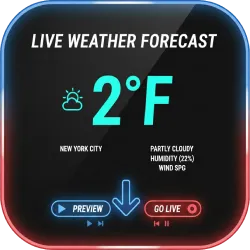
Live Weather Forecast
Add beautiful, real-time weather to your streams. The OBS Weather Plugin connects to OpenWeather, feeds data into customizable HTML/CSS/JS templates, and renders clean overlays via the Browser Source. Lightweight, themeable, and streamer-friendly.
OBS Weather Plugin
Meet OBS Weather, a lightweight, cross-platform plugin for OBS Studio that brings beautiful, real-time weather overlays to your stream in minutes. The plugin connects to OpenWeather, feeds the data into customizable HTML/CSS/JS templates, and renders everything cleanly through a standard Browser Source. It’s fast, themeable, and built for creators who want accurate on-stream weather without complicated tooling.
What It Does
- Live weather in your scene: current conditions and forecast-style data driven by OpenWeather.
- Theme system: edit overlays using plain
index.html,style.css, andscript.js. - Browser Source output: drop the overlay into any scene like any other web-based element.
- Cross-platform: designed to work on Windows, macOS, and Ubuntu/Linux.
- No telemetry: local-first workflow with open, editable formats.
Compatibility Notice
OBS Weather is a native OBS Studio plugin (not a standalone app). If you use alternative distributions (for example Flatpak on Linux), ensure you install the plugin to the correct user plugin directory. If the plugin does not appear in OBS after installation, double-check the paths below and restart OBS.
Installation
Setup is straightforward:
- Download the ZIP for your operating system and unzip it.
- Close OBS Studio if it is running.
-
Copy the extracted plugin files into the appropriate plugin folder:
- Windows:
C:\Program Files\obs-studio\obs-plugins\ - macOS:
/Library/Application Support/obs-studio/plugins/(or per-user~/Library/Application Support/obs-studio/plugins/) - Linux:
~/.config/obs-studio/plugins/(or system-wide/usr/lib/obs-plugins/and/usr/share/obs/obs-plugins/) - Flatpak:
~/.var/app/com.obsproject.Studio/config/obs-studio/plugins/
- Windows:
- Start OBS Studio and open the plugin from Tools (and/or enable the dock if available).
- Enter your OpenWeather API key, choose your location, units, language, theme, and refresh interval, then save.
- Add the overlay to your scene using a Browser Source pointing to the local URL provided by the plugin.
Themes Quick Start
OBS Weather includes a base theme to get you started, and it supports a simple, creator-friendly theme folder structure. If you can edit basic web files, you can build your own overlays that match your branding perfectly.
/themes/<your-theme>/
├── index.html
├── style.css
├── script.js
└── manifest.ini
Your manifest.ini typically includes:
name, description, author, and last_update (YYYY-MM-DD).
Install themes by opening the plugin’s Theme folder and placing your theme directory inside it, then selecting it from the theme dropdown.
Data Placeholders (Theme Tokens)
Themes can use placeholders (plain tokens) that get replaced with live weather data at runtime. This keeps themes simple, portable, and easy to iterate on.
| Category | Examples |
|---|---|
| Location & Units | {{ city }}, {{ country }}, {{ units }}, {{ timezone }} |
| Temperature | {{ temp }}, {{ temp_round }}, {{ temp_unit }}, {{ temp_fmt }} |
| Wind & Humidity | {{ wind_speed }}, {{ wind_unit }}, {{ humidity }}, {{ wind_line }}, {{ hum_line }} |
| Conditions | {{ cond_main }}, {{ cond_desc_cap }}, {{ icon_code }}, {{ icon_url }} |
| Sun Times | {{ sunrise_local }}, {{ sunset_local }}, {{ sunrise_hm }}, {{ sunset_hm }} |
| Error State | {{ error }} |
Advanced: the plugin can expose additional flattened OpenWeather fields (including array entries) so theme authors can build
highly detailed layouts without changing plugin code. Optional text filters may be available to format values
(for example: upper, lower, capital, round, default, prefix, suffix).
Troubleshooting
- Plugin not visible: confirm the plugin folder path for your OS and restart OBS.
- No weather data: verify your OpenWeather API key and that your network allows outbound requests.
- Fonts look different: install the fonts referenced by your theme or switch to a system font stack.
- Crashes on load: temporarily remove custom themes to isolate the cause, then add them back one by one.
Best Use Cases
- IRL & travel streams: show local conditions so the stream feels more “live.”
- Outdoor events: keep viewers informed with real-time weather context.
- Just Chatting scenes: a compact info card that matches your brand.
- Roleplay / city cams: add realism with accurate location-based weather.

