








Futuristic Stream Starting Soon Overlay
A futuristic cyberpunk “Stream Starting Soon” overlay for OBS Studio Browser Source. Neon HUD design with animated scanline, glitch title, floating particles, and a configurable countdown controlled via config.json.
Screenshots
Preview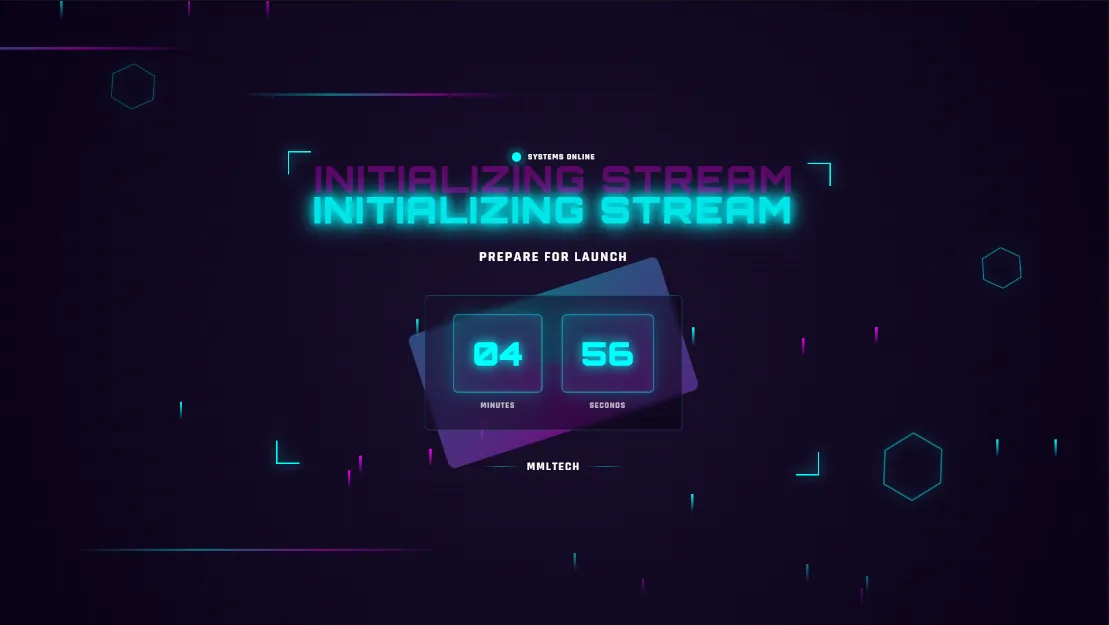
Futuristic Stream Starting Soon Overlay (OBS Studio Browser Source)
The Futuristic Stream Overlay by MML Tech is a high-impact
cyberpunk “Starting Soon” overlay for OBS Studio, designed to deliver a clean,
sci-fi HUD aesthetic with strong motion graphics and a readable countdown timer. It features
neon grid visuals, a scanline effect, floating particles,
hexagon accents, and a glitch-styled title for a modern “tech” vibe.
Everything is controlled from a single config.json file (no coding required).
What It Does
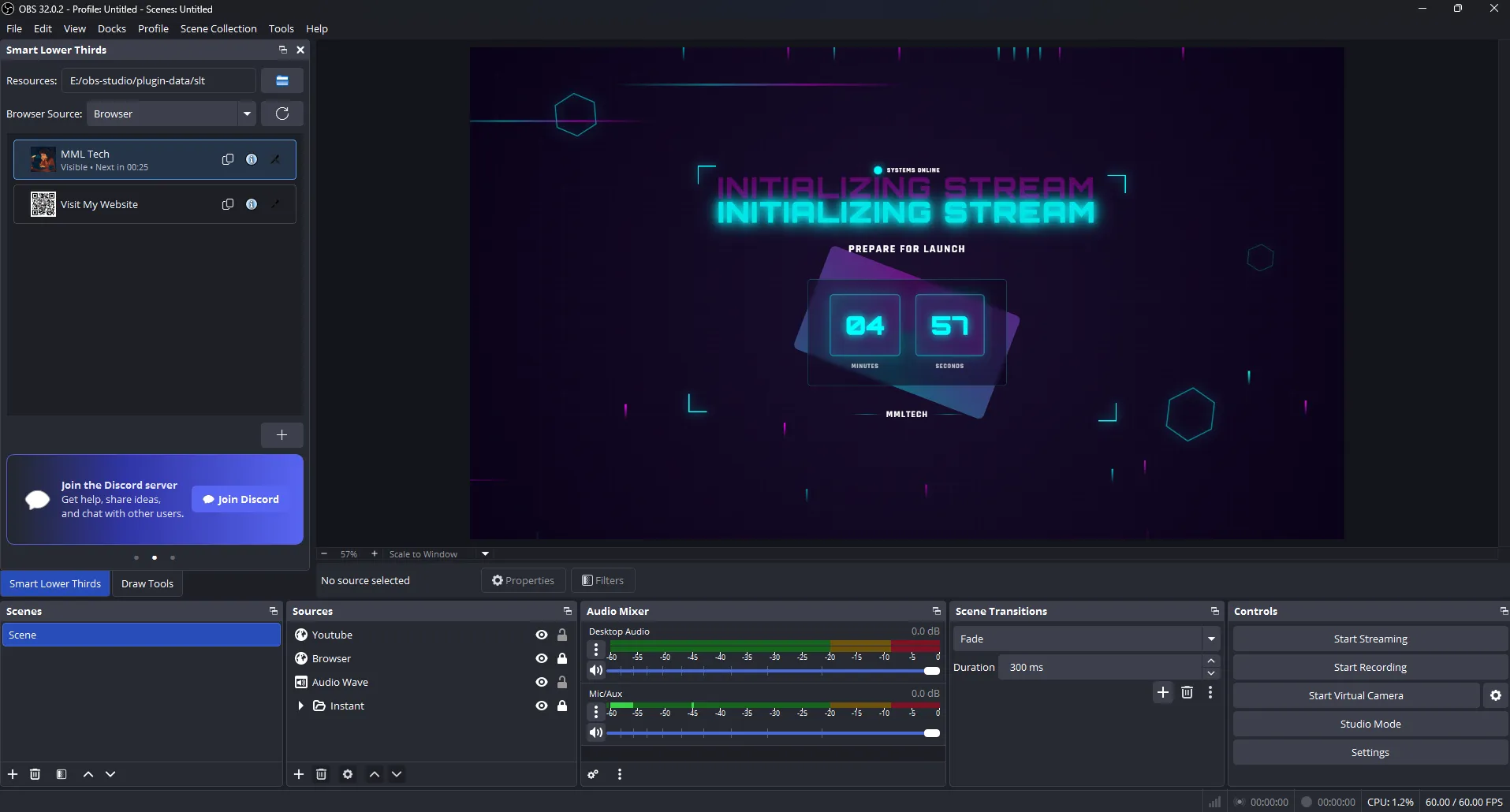
This overlay is built to run as an OBS Browser Source using the
Local File workflow. You add the HTML file to OBS and customize the look and text by
editing config.json. The overlay renders a bold starting screen with a
minutes:seconds countdown, plus configurable branding text such as your stream title,
subtitle, and streamer name. The display is designed to remain sharp and legible at 1080p
while maintaining strong motion and depth.
Key Features
- Cyberpunk HUD style: neon grid background, scanline, hexagon accents
- Glitch title effect: layered animated title for futuristic energy
- Animated atmosphere: floating particles + streaming “data lines”
- Countdown timer: minutes/seconds countdown with smooth digit flip animation
- Status badge: configurable status text and animated pulse rings
- Config-driven setup: customize everything via
config.json - Theme controls: background, surface, primary/secondary accent, text color
- Typography controls: font family + base font sizing for scaling
- OBS-ready: optimized for OBS Browser Source (Local File)
Requirements
- OBS Studio: latest version recommended
- Overlay files: HTML +
config.jsonin the same folder - Browser Source: add via Local File for plug-and-play usage
How to Add the Overlay to OBS Studio
- Open OBS Studio.
- Click + in Sources and choose Browser Source.
- Name it (example: Futuristic Starting Soon).
- Enable Local File.
- Select the overlay HTML file.
- Set the resolution:
- Width: 1920
- Height: 1080
- Click OK.
How Configuration Works
This overlay is designed for a simple workflow: edit config.json and save.
The overlay uses those values as its defaults and applies them immediately on load.
Recommended configuration keys include:
- Text:
main_title,subtitle,streamer_name,status_text - Theme:
background_color,surface_color,primary_accent,secondary_accent,text_color - Typography:
font_family,font_size
Countdown Behavior
The overlay includes a built-in countdown display intended for “Starting Soon” scenes. If you set the countdown logic (or integrate scheduling later), the timer digits animate cleanly during updates and remain readable during motion effects.
Best Use Cases
- Starting Soon scenes: a high-energy countdown screen for stream intros
- Sci-fi branding: ideal for tech, cyberpunk, FPS, and esports streams
- Event launches: timed premieres, tournaments, and scheduled broadcasts
Common Issues & Fixes
- Overlay looks “unstyled”: confirm
config.jsonis in the same folder as the HTML - Changes not visible: refresh the Browser Source in OBS after editing
config.json - Fonts not loading: allow external resources or use a local font fallback

