









Church Verse Dock & Cinematic Bible Overlay
A professional OBS verse dock and overlay that fetches Bible passages and random scriptures with translations, cinematic typewriter and credits effects, lower third or fullscreen display, glow styling, and automatic hide timing.
Screenshots
Preview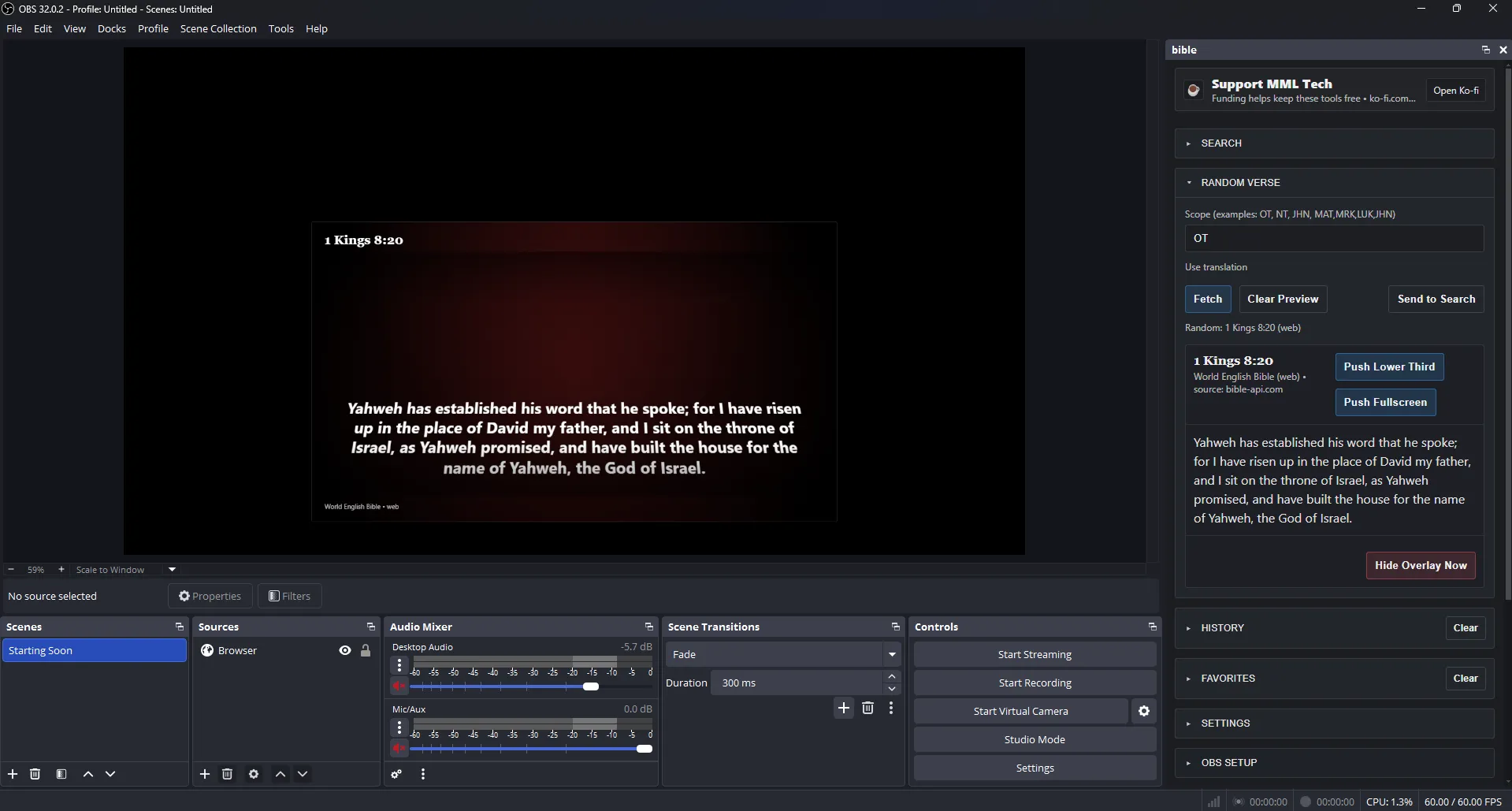
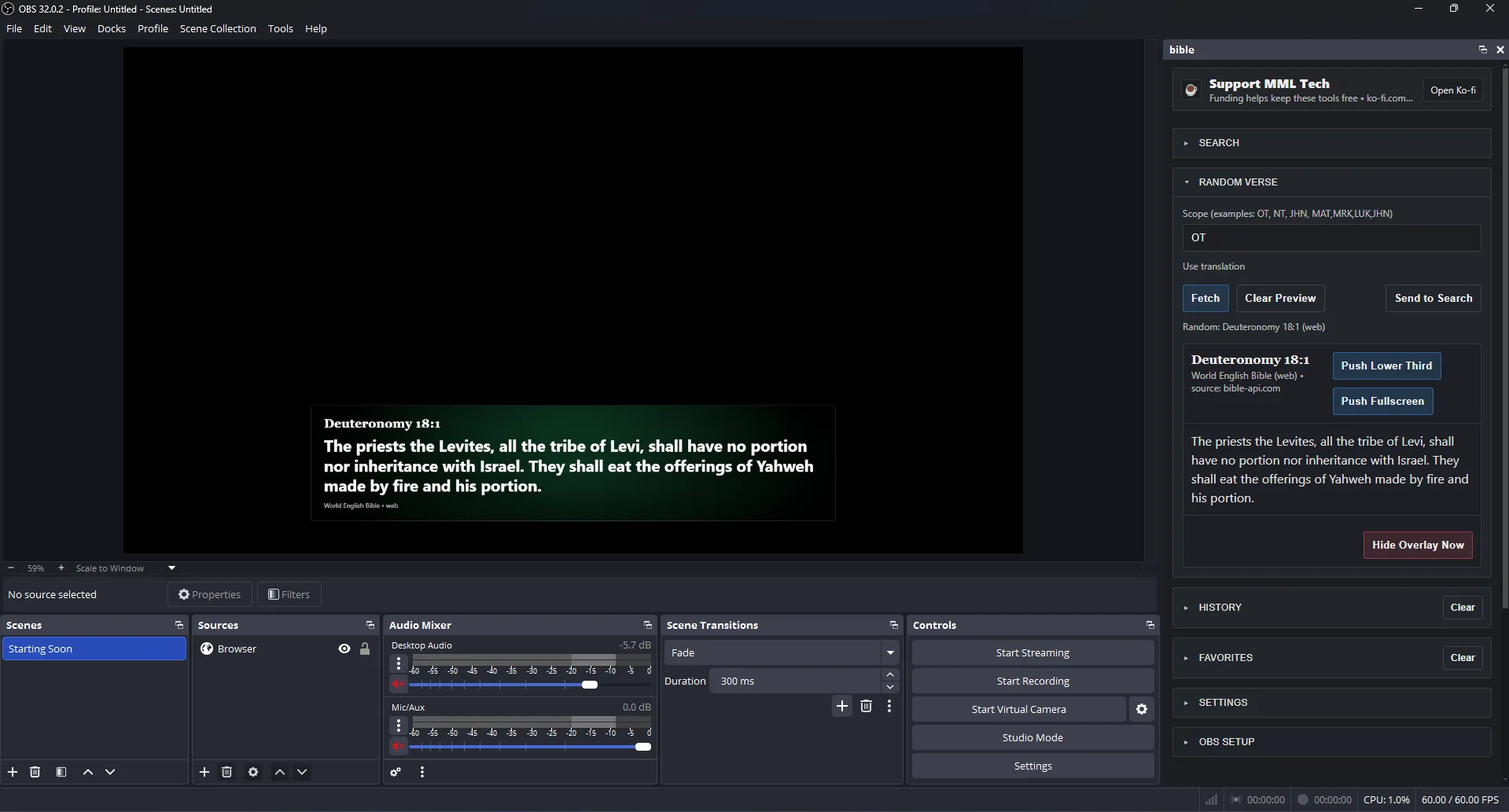
Church Verse Dock + Overlay for OBS Studio
This package is a local Verse Dock + Overlay system designed for OBS Studio. It lets you fetch Bible passages (and random verses) from Bible-API.com and display them on stream as either a lower third or a fullscreen verse card with cinematic presentation effects and fully configurable timing and styling.
What It Does
- Provides a dock UI (dock.html) you can load in OBS (or a browser) to search verses, pick translations, and control how the verse appears on stream.
- Provides an overlay page (overlay.html) that you add as an OBS Browser Source. The overlay listens for commands from the dock and renders the verse with the selected effect, glow, sizing, and timing.
-
Uses Bible API endpoints to fetch:
- Specific passages (e.g.,
John 3:16) with a chosen translation. - Random verses from a scope (e.g.,
OT,NT,MAT,MRK,LUK,JHN, or a single book likeJHN).
- Specific passages (e.g.,
What It’s Good For
- Church livestreams: quickly display scripture references during preaching/teaching without switching scenes or manually typing text.
- Bible study streams: show passages dynamically while discussing, with clean on-screen presentation.
- Worship sets / sermon series: keep a consistent, broadcast-style verse overlay across services.
- Low-latency local workflow: runs as local HTML files no server required ideal for stable live production.
Key Features
Verse Fetching and Translations
- Search by reference (book/chapter/verse or ranges supported by the API).
- Translation dropdown populated automatically from
https://bible-api.com/data. -
Fetch calls follow the API format:
https://bible-api.com/<passage>?translation=<translation_id>
Random Verse Workflow
-
Dedicated Random Verse panel using:
https://bible-api.com/data/<translation>/random/<scope> -
Supports:
- Single book scopes (e.g.,
JHN) - Multi-book scopes (e.g.,
MAT,MRK,LUK,JHN) - Testament scopes (
OT,NT)
- Single book scopes (e.g.,
-
Random verse can be:
- Pushed immediately as Lower Third or Fullscreen
- Sent into Search for refinement
Broadcast-Friendly Overlay Modes
- Lower Third mode: centered at top or bottom (safe layout, no edge clipping).
- Fullscreen mode: centered cinematic presentation for longer readings.
Cinematic Display Effects
- Typewriter: text reveals progressively (ideal for short verses and emphasis).
- Cinematic “movie ending” credits: longer passages roll smoothly like film credits.
- Auto mode selects the best effect based on passage length.
Timing Controls (Live-Safe)
- Animation speed: controls how fast the effect plays (typewriter cadence / credits roll speed).
- Time on screen: after the animation finishes, the verse stays visible for a set duration, then automatically hides.
- Manual Hide button available for immediate removal.
Styling Controls
- OBS-themed, flat dock UI with a responsive layout.
- Glow color control to match your stream theme.
- Subtle glow + clean typography for high readability on stream.
History & Favorites
- History keeps a list of recently fetched/shown verses for quick reuse.
- Favorites lets you pin your most-used passages.
- Designed for fast recall during live services.
Responsive, Production-Ready Dock UI
-
Accordion panels in a fixed order:
Search → Random Verse → History → Favorites → Settings → OBS Setup - Custom dropdown controls (no native
<select>styling limitations). - Dropdowns render above accordion content (no clipping), with OBS-style scrollbars.
- Footer areas only appear when they contain actions/content.
OBS Setup Notes
-
Load the dock as a local URL:
file:///C:\path-to\dock.html -
Add the overlay as a Browser Source and use a local URL (do not use the “Local file” checkbox):
file:///C:\path-to\overlay.html - This approach is generally more reliable for syncing and refresh behavior in OBS.

