









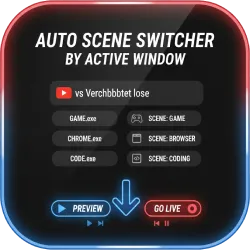
Auto Scene Switcher by Active Window
This script adds an advanced rule-based system for automatically switching OBS scenes depending on which application or window is currently active on your computer. It is designed for streamers and workflow users who frequently move between programs and w
OBS Auto Scene Switcher (Active Window Rules)
This script adds an advanced, rule-based automation system that switches OBS scenes automatically depending on which application or window is currently active on your computer. It’s designed for streamers and workflow users who move between programs often and want OBS to react instantly and reliably.
What the Script Does
The script monitors the foreground window using Windows WinAPI (via LuaJIT) and compares the window’s executable name and title against a list of user-configurable rules. When a match is found, OBS automatically switches to the scene you configured for that rule.
It supports up to eight independent rules, giving you flexible automation for gaming, productivity, communication apps, or any multi-app workflow where different scenes are needed depending on what’s in focus.
Key Features
- Automatic scene switching based on the active window
- Rule matching by executable name, window title, or both
- Optional substring filter for precise title matching
- Up to 8 configurable rules (independent and ordered)
- Adjustable polling interval (how often the active window is checked)
- Adjustable cooldown to prevent rapid scene changes
- Refresh button to update the list of currently open windows
- Integrated OBS settings panel via Tools → Scripts
Requirements
- OBS Studio (Windows)
- LuaJIT (already included with OBS)
- Windows WinAPI access (Windows-only; not compatible with macOS or Linux)
Installation
- Download the
.luafile. - Open OBS Studio.
- Go to Tools → Scripts.
- Click the + icon and add the script.
- Configure your rules and settings in the script properties panel.
How Rules Work
Each rule checks the currently active window and can match using:
- Executable name (the program process)
- Window title (the visible title text)
- Both for stricter matching
- Optional title substring filter for even more precision
| Rule Setting | Purpose |
|---|---|
| Match Mode | Choose executable, title, or combined matching behavior. |
| Executable | Target a specific app (e.g., a game, editor, browser, chat app). |
| Window Title | Match a specific window name (useful for browsers, documents, tabs, etc.). |
| Title Filter | Optional substring to narrow matches (ideal for “Any window” + filter setups). |
| Target Scene | The exact OBS scene name to switch to when the rule matches. |
Notes & Best Practices
- Only top-level visible windows appear when you refresh the window list.
- Scene names must match exactly as they appear in OBS.
- Rules are evaluated in order — the first matching rule is the one that runs.
- For complex setups, a reliable strategy is to use “Any window” with a custom title filter to distinguish between similar windows or multiple instances.
- If you notice rapid scene flips, increase the cooldown and/or reduce the polling frequency.

