








Animated Weather Overlay for OBS & Streamlabs Dynamic Real-Time Widget
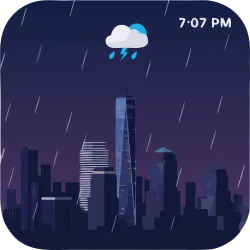
Add a cozy, dynamic vibe to your stream with this live weather overlay for OBS. Features real-time animated rain, snow, and storms based on local OpenWeather data. Easy to customize and lightweight!
Screenshots
Preview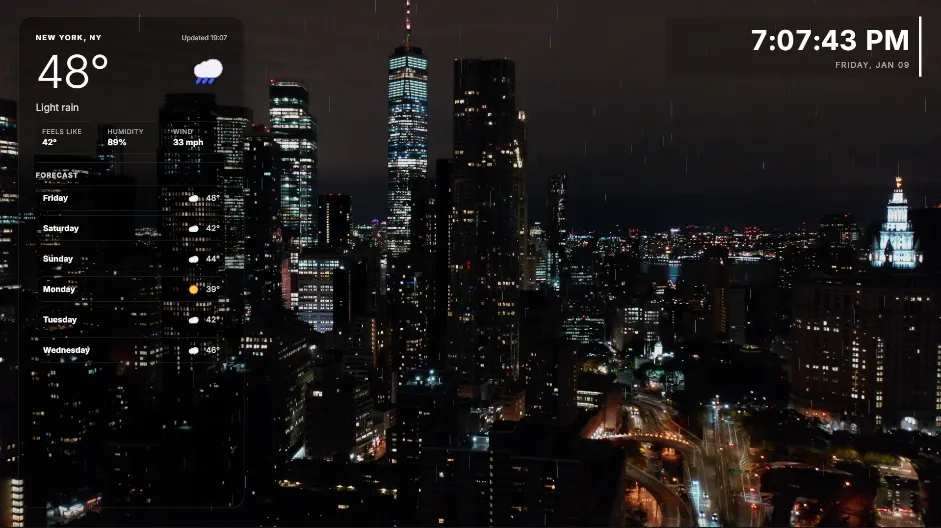
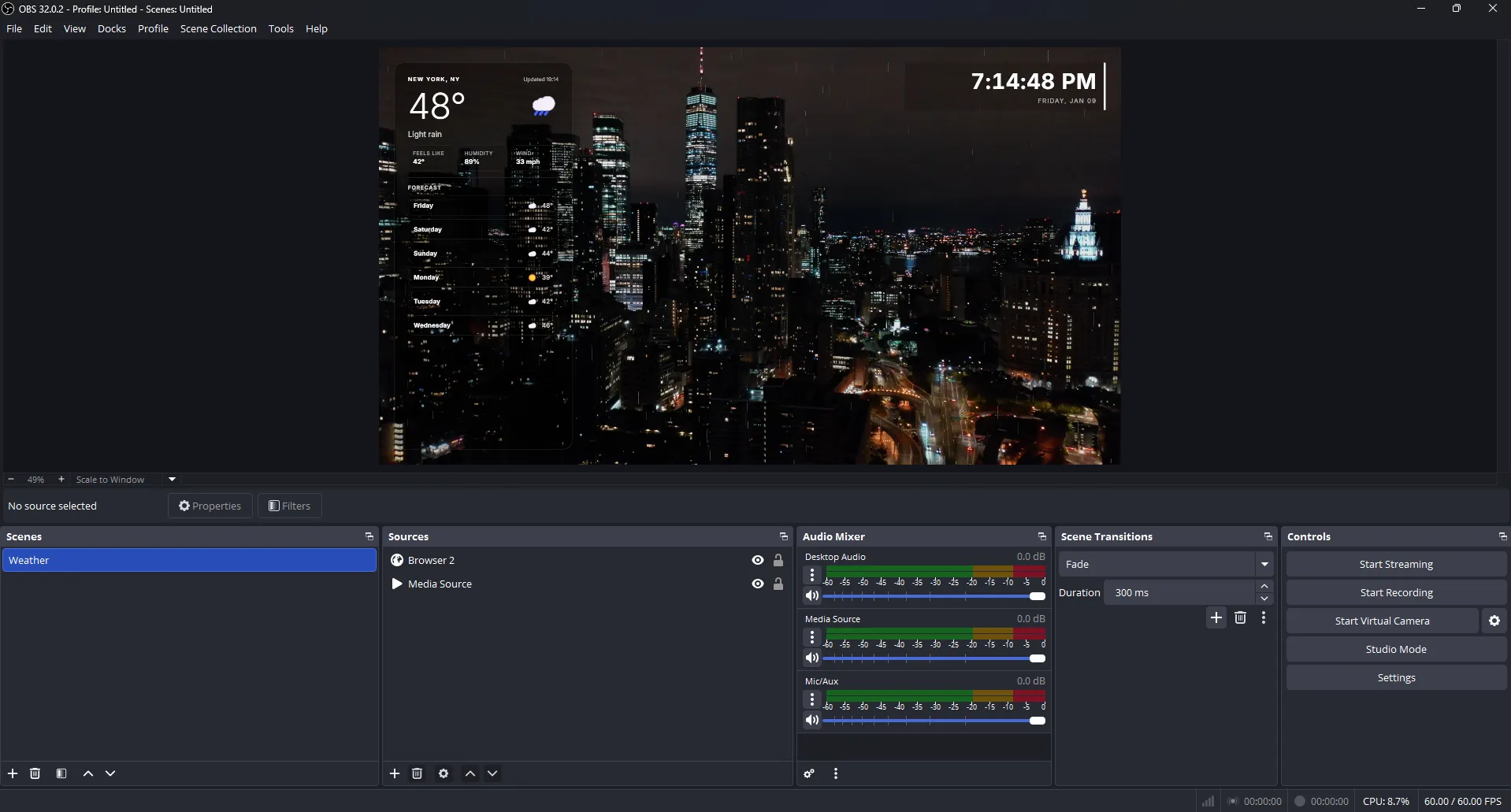
🌦️ Make Your Stream Feel Alive with Real-Time Weather
Most weather overlays are just boring boxes with static numbers. This one is different. It’s designed to be a natural part of your scene, pulling live data from OpenWeather to create a living, breathing backdrop for your stream.
It’s all about the atmosphere. When it starts raining outside your window, it starts raining on your stream. The overlay features smooth, animated backgrounds that change automatically—so whether it’s a stormy night, a snowy morning, or a clear sunset, your viewers aren't just seeing the temp; they're feeling the vibe.
config.json file with any
text editor (like Notepad or VS Code) and replace YOUR_OPENWEATHER_KEY with your personal API key from
OpenWeather.
What’s inside?
- Real-time updates: Accurate temp, humidity, wind, and "feels like" data.
- Dynamic visuals: Beautiful animations for rain, snow, clouds, and thunder.
- Built-in Clock: Keep track of time with 12/24h modes and custom timezones.
- Hype Timer: A simple, optional countdown for your "Starting Soon" screens.
Make it your own
You don't need to be a coder to make this look good. Everything is handled in a simple config.json file.
You can easily tweak the transparency, colors, and layout to match your branding. It’s built to be
completely transparent, so it looks clean sitting over your gameplay or your webcam feed without
blocking the view.
Works everywhere
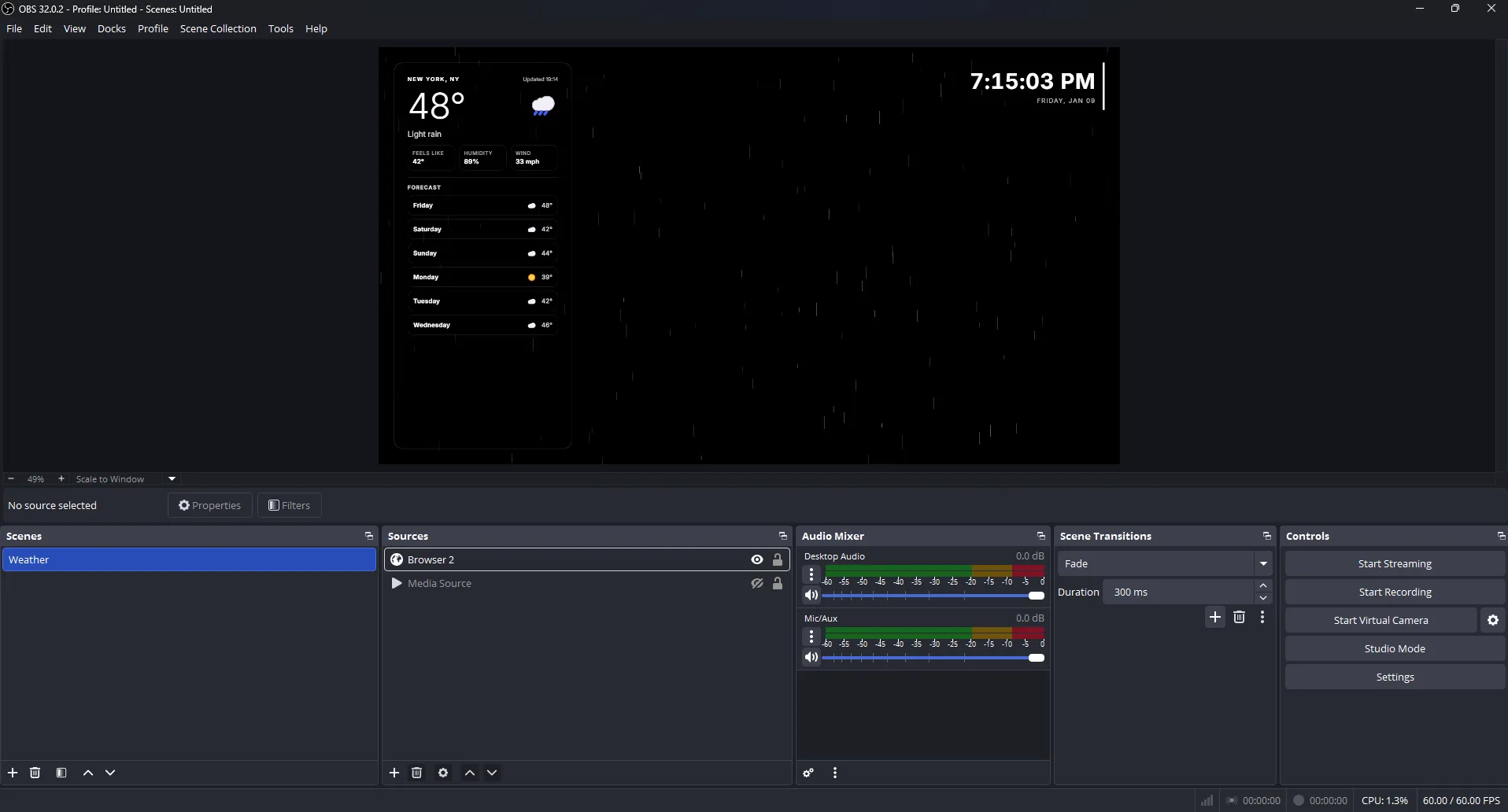
With support for 35 languages, it's ready for your community no matter where they are. It’s lightweight, won’t lag your OBS, and works perfectly as a simple Browser Source in OBS Studio or Streamlabs.
Quick Start
Setting it up takes about two minutes. You just need a free API key from OpenWeather. If you’re not sure how to get one, check out this simple step-by-step guide . Once you have your key, just drop it into the config file, pick your city, and you're good to go.
If you want your stream to feel a bit more premium and "cozy," this is the easiest way to do it. Add some life to your layout and let your audience see the world with you.

