







lua-script
windows
macos
linux
YouTube Live Chat Overlay
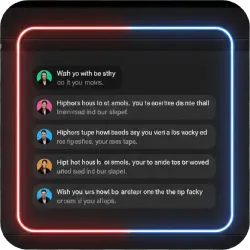
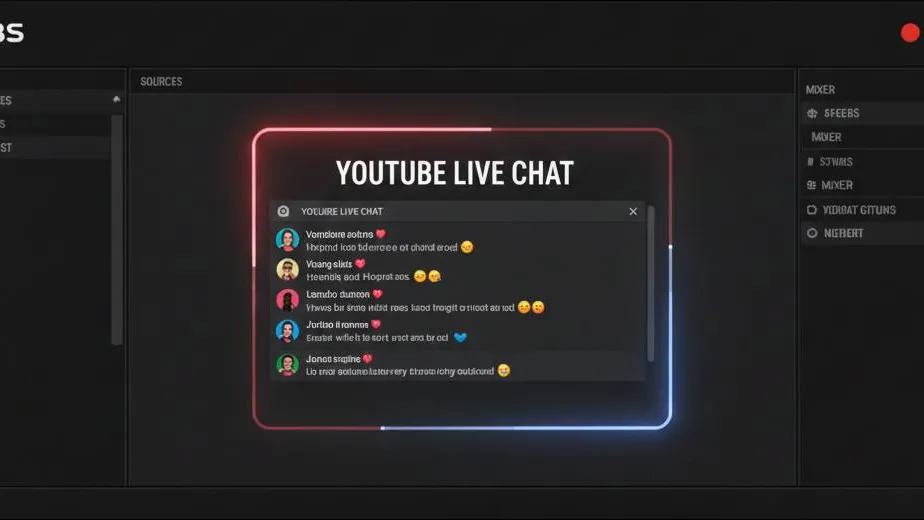
Lightweight OBS Lua script that automatically embeds your YouTube Live Chat as a clean Browser Source. Creates/updates a “YouTube Chat Overlay” source from your Video ID with transparency, optional UI hiding, scrollbar control, and custom CSS styling.
YouTube Live Chat Overlay (Lua Script)
This lightweight OBS Studio Lua script automatically embeds your YouTube Live Chat as a clean, customizable Browser Source with no third-party websites and no external applications. Just paste your YouTube Live Video ID and the script creates (or updates) a ready-to-use chat overlay inside OBS.
What It Does
The script creates or updates a Browser Source named “YouTube Chat Overlay” and loads your chat using the official YouTube pop-out chat URL format. It is designed for overlays: transparent background, optional UI cleanup, and full styling control through custom CSS.
Features
- Auto source management: creates or updates a Browser Source named “YouTube Chat Overlay”
- Video ID driven: automatically loads the correct chat for your live stream
- Transparent background: ideal for seamless scene overlays
- Hide YouTube UI chrome: optionally remove header, input box, and other non-overlay elements
- Scrollbar controls: optionally hide scrollbars or lock scrolling entirely
- Custom CSS field: restyle the chat freely (fonts, colors, spacing, badges, emotes, etc.)
- No dependencies: pure Lua, runs entirely inside OBS
How It Works
YouTube Live Chat can be embedded using the pop-out URL format:
https://www.youtube.com/live_chat?is_popout=1&v=VIDEO_IDThis script simply builds that URL from your provided Video ID and applies it to an OBS Browser Source. You can keep the default look for a clean, minimalist overlay or inject your own CSS to match your stream branding.
Setup in OBS
- Open OBS Studio.
- Go to Tools → Scripts.
- Click the + button and add the
.luascript. - Paste your YouTube Live Video ID in the script settings.
-
Choose your options:
- Hide UI chrome (header/input)
- Hide scrollbars or lock scrolling
- Add custom CSS (optional)
- Add the source to your scene: Sources → + → Browser → select “YouTube Chat Overlay”.
Customization (CSS)
Use the Custom CSS field to fully control the overlay’s look and readability. Common tweaks include:
- Increase font size and line spacing for large screens
- Improve contrast for dark/light themes
- Reduce padding so more messages fit
- Hide elements you don’t want on stream (timestamps, badges, etc.)
Best Use Cases
- Minimal chat overlays: clean chat look without YouTube’s extra UI
- Brand-matched layouts: restyle chat to match your graphics package
- Full-screen scenes: large readable chat for IRL or community streams
- Moderation-friendly: keep chat visible for hosts while recording or streaming
Community Videos
Creators talking about YouTube Live Chat Overlay.
Please log in to submit.
Preparing your download
Help keep this projects free
Your support funds hosting, updates, and new features for obscountdown.com tools.


15
seconds
Preparing YouTube Live Chat Overlay download URL…
If nothing happens, use the manual button below.
Your browser may block automatic redirects in some cases.