







browser-source
windows
macos
linux
Stream Countdown Timer Browser Source
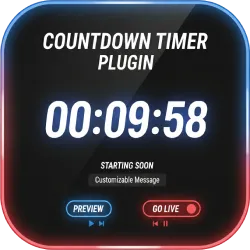
Create professional countdown timers for OBS Studio in minutes. Customize layout, animations, and timing, then add the timer as a Browser Source to enhance starting soon screens, breaks, and live events.
OBSCountdown Timer (Web App for OBS Browser Source)
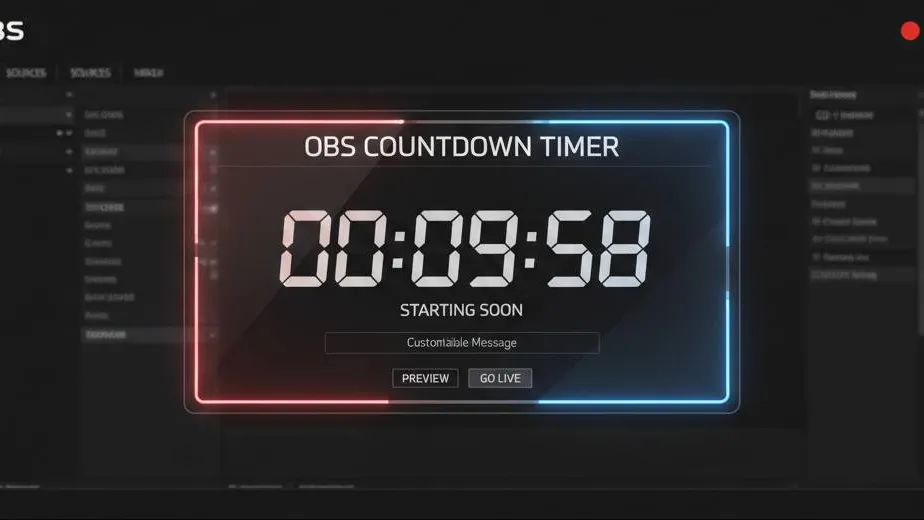
timer.obscountdown.com is a fast, streamer-friendly web app that helps you create professional countdown timers for OBS Studio. Design your timer visually, fine-tune the look and behavior, and then use the generated OBS Browser Source URL to display it in your scene. It is built for creators who want clean overlays, easy setup, and reliable timing without complicated tools.
What It Does
The timer builder generates a fully configured overlay URL for OBS. You choose the timer mode (date-based countdown or interval-based timer), set your timezone, and customize the visual style. The output is a shareable configuration link that you can paste into an OBS Browser Source, keeping your overlay consistent across scenes and systems.
Key Features
- OBS-ready Browser Source URL: copy and paste into OBS Studio
- Date countdown mode: count down to a specific date and time
- Interval mode: start from a custom duration (hours, minutes, seconds)
- Timezone support: consistent timing across regions and daylight changes
- Visual customization: fonts, sizes, spacing, alignment, and layout controls
- Animations: polished transitions for a broadcast-ready look
- Theme-friendly: works on light or dark overlays and different scene designs
- Shareable configs: keep a saved URL for each scene or event
- Cross-platform: works anywhere OBS runs (Windows, macOS, Linux)
Requirements
- OBS Studio with a Browser Source (standard in OBS)
- An internet connection to load timer.obscountdown.com as an overlay
How to Use in OBS Studio
- Open timer.obscountdown.com.
- Select your flow:
- Date: choose a target date/time and timezone
- Interval: set hours, minutes, and seconds
- Customize the timer appearance (layout, typography, dividers, animation, and theme).
- Copy the generated OBS URL (your configuration is encoded in the link).
- In OBS Studio, add a Browser Source to your scene.
- Paste the URL, set your preferred width/height, and enable any needed browser options.
- Position the source in your overlay and you are ready to stream.
Styling & Overlay Tips
- Use transparent backgrounds so the timer blends into your layout
- Match your brand by choosing consistent fonts and spacing
- Create multiple URLs for different scenes (starting soon, break, event countdown)
- Pair with other overlays like lower thirds, alerts, or panels for a cohesive look
Best Use Cases
- Starting Soon screens: count down to stream start time
- Event launches: hype a release, tournament, or community moment
- Break timers: keep intermissions structured and professional
- Stream schedules: run recurring countdowns to weekly shows
- Giveaways: display time remaining before a draw or reveal
Why Streamers Use OBSCountdown
The goal is simple: broadcast-quality timers with a workflow that fits streaming. Configure once, paste the URL into OBS, and reuse it whenever you need a clean, accurate countdown on screen.
Community Videos
Creators talking about Stream Countdown Timer Browser Source.
Please log in to submit.
Preparing your download
Help keep this projects free
Your support funds hosting, updates, and new features for obscountdown.com tools.


15
seconds
Preparing Stream Countdown Timer Browser Source download URL…
If nothing happens, use the manual button below.
Your browser may block automatic redirects in some cases.