






plugin
windows
Instant Highlight Source Draw
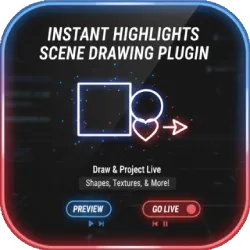
A lightweight OBS Studio plugin that lets you draw on a source in real time (square, circle, arrow, heart, eraser) to highlight anything instantly on stream.
Screenshots
Preview
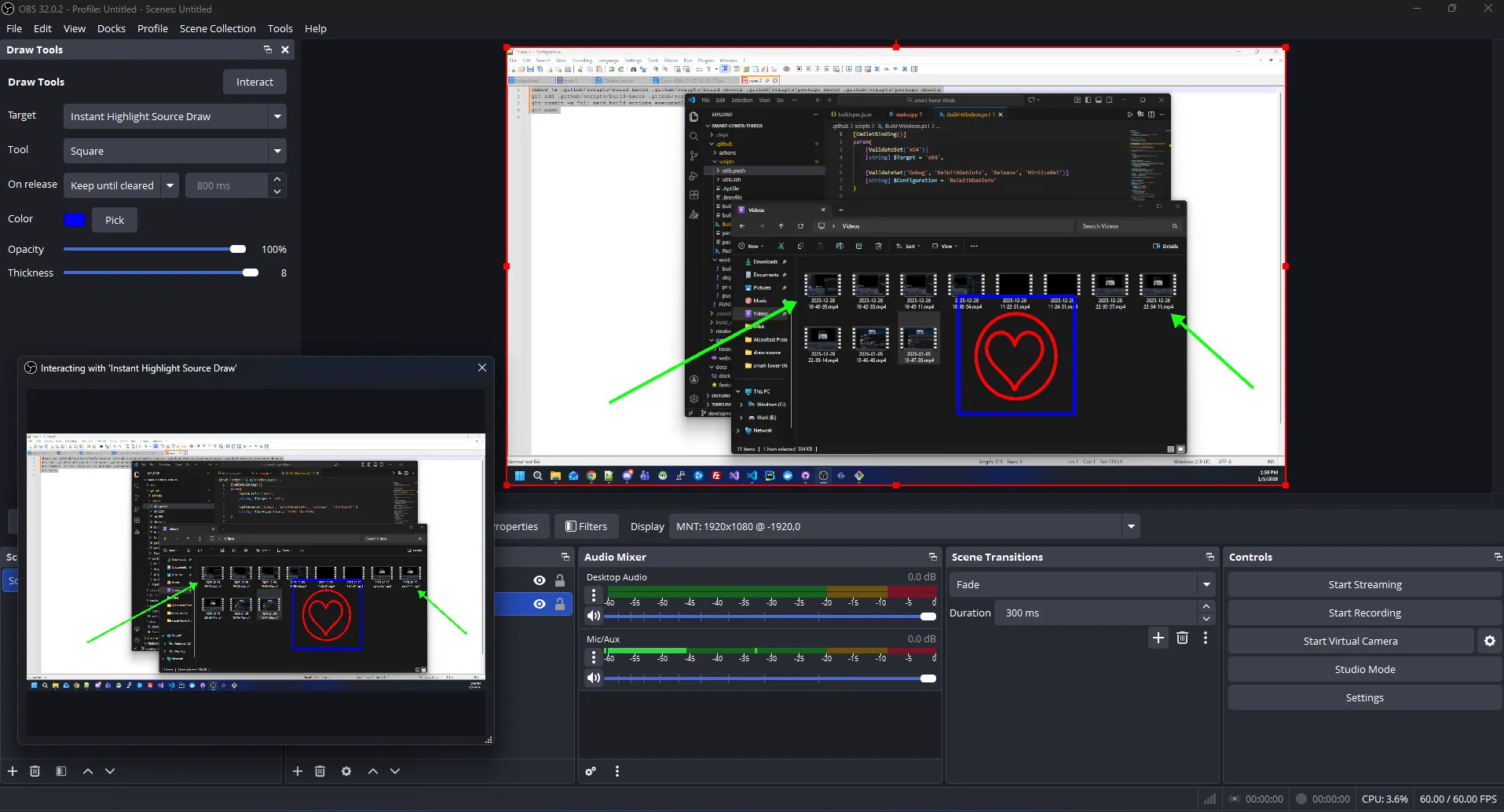
Plugin Preview
Instant Highlight Source Draw (OBS Studio Plugin)
Instant Highlight Source Draw is a lightweight OBS Studio plugin that lets you draw directly on a source in real time to highlight important things during your livestreams, tutorials, and presentations. Choose a tool (square, circle, arrow, heart, eraser), customize color, opacity, and thickness, then draw instantly using the source interaction workflow. It is built for creators who want fast visual callouts, clean overlays, and simple control without external apps.
What It Does
The plugin adds a dedicated Draw Source and a Draw Tools Dock. You select which Draw Source to control from the dock, open the source Interact window, and draw on top of your content in real time. Your drawings can either stay on screen until you clear them or fade out after release depending on your chosen mode. This makes it perfect for quick highlights, coaching, live commentary, and step-by-step explanations.
Key Features
- Real-time drawing: draw on a source instantly using OBS interaction
- Tools: Square, Circle, Arrow, Heart, and Eraser
- Keep until cleared: drawings persist indefinitely until Clear or Eraser
- Fade after release: drawings fade out automatically (configurable duration)
- Appearance controls: color picker, opacity slider with value, thickness (1–8)
- Quick actions: Undo last stroke and Clear all drawings
- Dock workflow: select the target Draw Source and control everything from one place
- Persistent dock: the dock remains enabled after restarting OBS
- Designed for streaming: fast callouts with minimal setup and no extra overlays
Requirements
- OBS Studio (Windows): standard OBS installation with frontend + Qt support
- Source Interaction: use OBS Interact to draw on the selected source
How to Use in OBS Studio
- Add a Draw Source to your scene.
- Open View → Docks → Draw Tools.
- Select your Draw Source from the Target dropdown.
- Choose a tool (Square/Circle/Arrow/Heart/Eraser).
- Set your color, opacity, and thickness.
- Select the On release mode:
- Keep until cleared: drawings stay until you Clear or erase them
- Fade after release: drawings fade out after the configured time
- Click Interact and draw directly on the source.
- Use Undo or Clear anytime to control what stays on screen.
Styling & Overlay Tips
- Use bold colors for fast callouts that pop on stream
- Lower opacity for subtle highlighting that doesn’t cover content
- Use arrows to guide attention during tutorials and reviews
- Keep mode for step-by-step explanations; Fade mode for quick commentary
- Pair with your overlays (lower thirds, scoreboards, alerts) for a complete broadcast look
Best Use Cases
- Tutorials: highlight buttons, menus, and key steps in real time
- Game streaming: point out map locations, UI elements, or plays
- Coaching & review: draw attention to mistakes, patterns, and strategies
- Presentations: annotate slides and screen shares without leaving OBS
- Live commentary: quick callouts during events, reactions, and breakdowns
Why Streamers Use OBSCountdown Tools
The goal is simple: broadcast-ready tools with workflows that match streaming. Instant Highlight Source Draw keeps everything inside OBS so you can highlight what matters, exactly when it matters, with controls that stay fast and predictable.
Community Videos
Creators talking about Instant Highlight Source Draw.
Please log in to submit.
Preparing your download
Help keep this projects free
Your support funds hosting, updates, and new features for obscountdown.com tools.


15
seconds
Preparing Instant Highlight Source Draw download URL…
If nothing happens, use the manual button below.
Your browser may block automatic redirects in some cases.