









plugin
windows
macos
linux
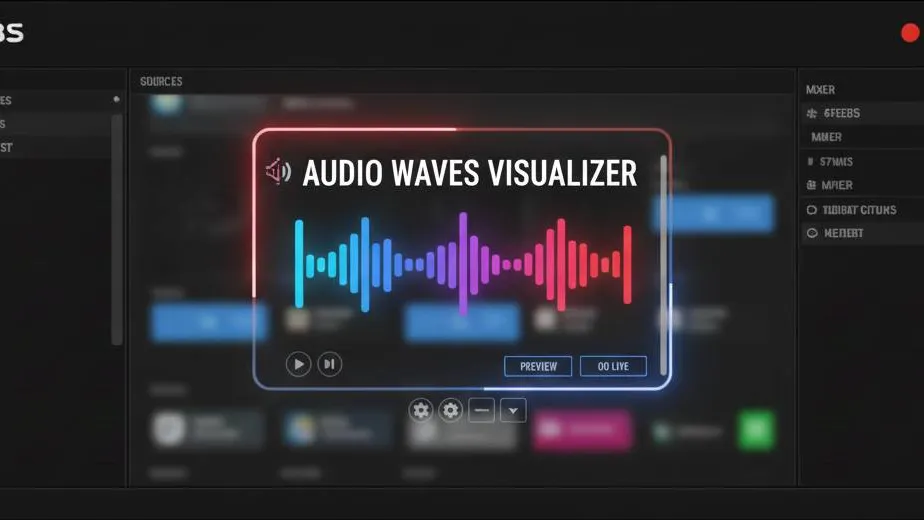
Audio Waves Visualizer
Audio Wave (Simple) listens to any audio source in your scene and draws waves, bars, and shapes that react in real timeno external tools, no scripting, just one dedicated source.
Screenshots
Preview
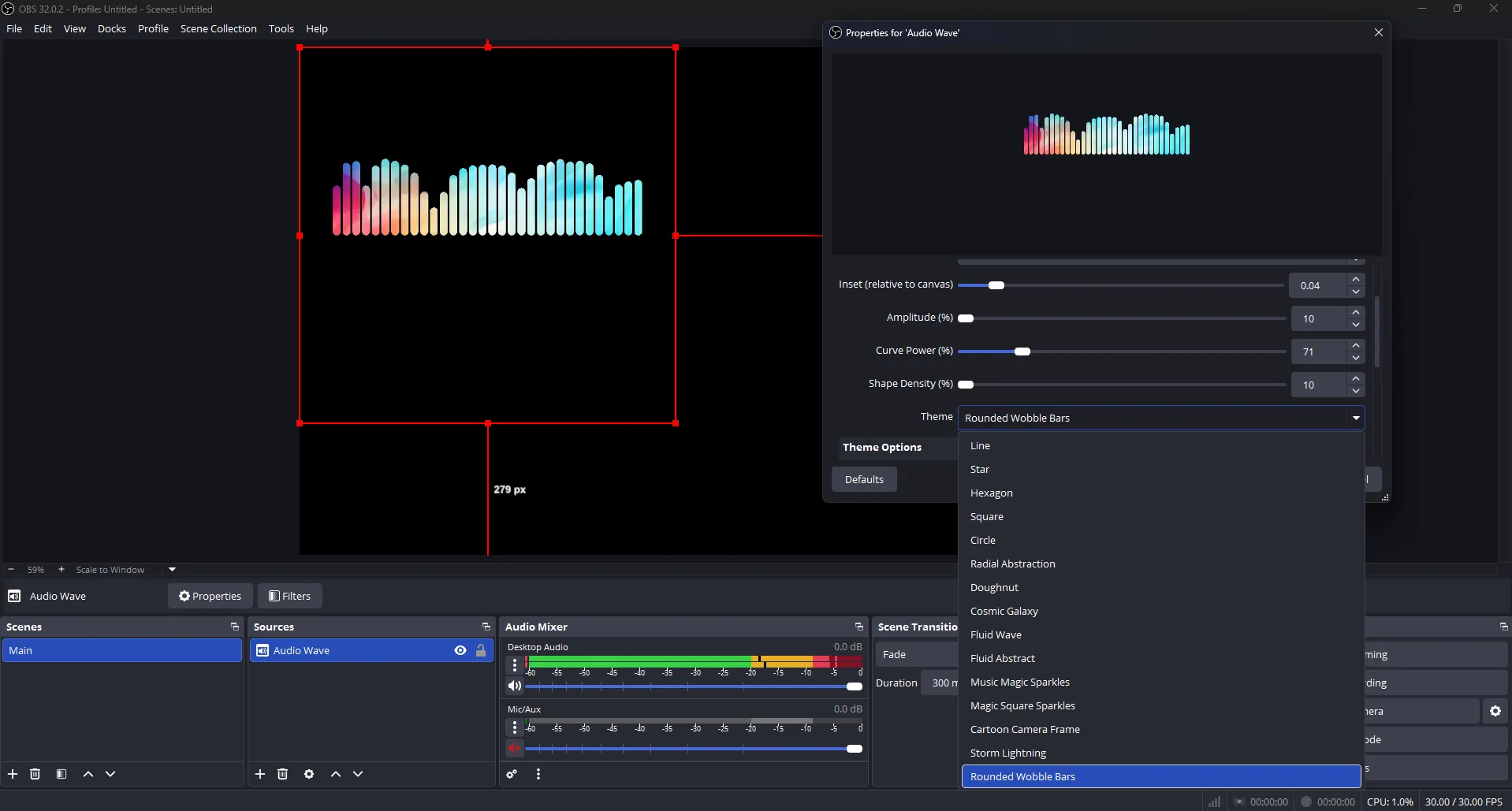
Wave Styling
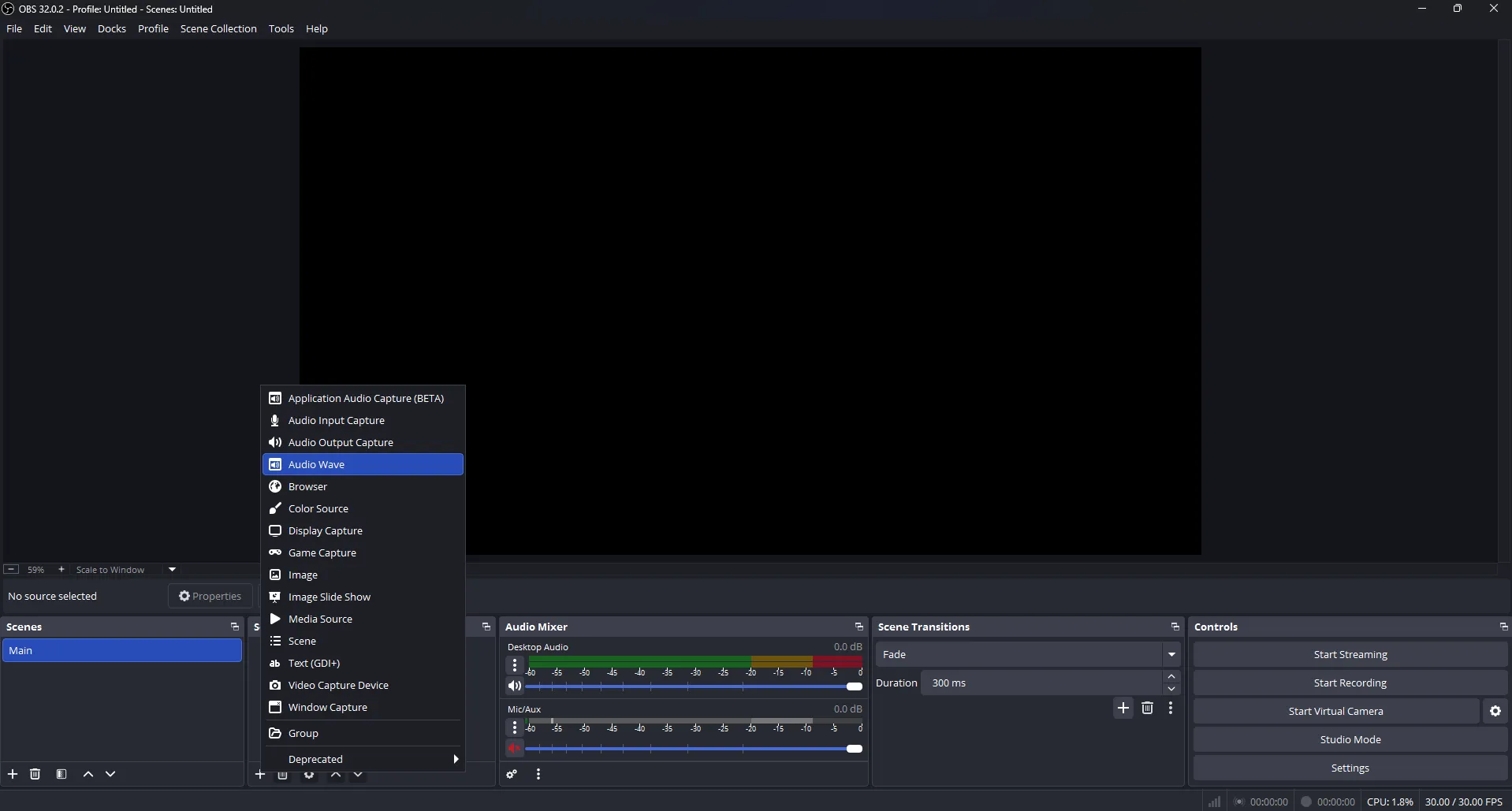
How to add the source
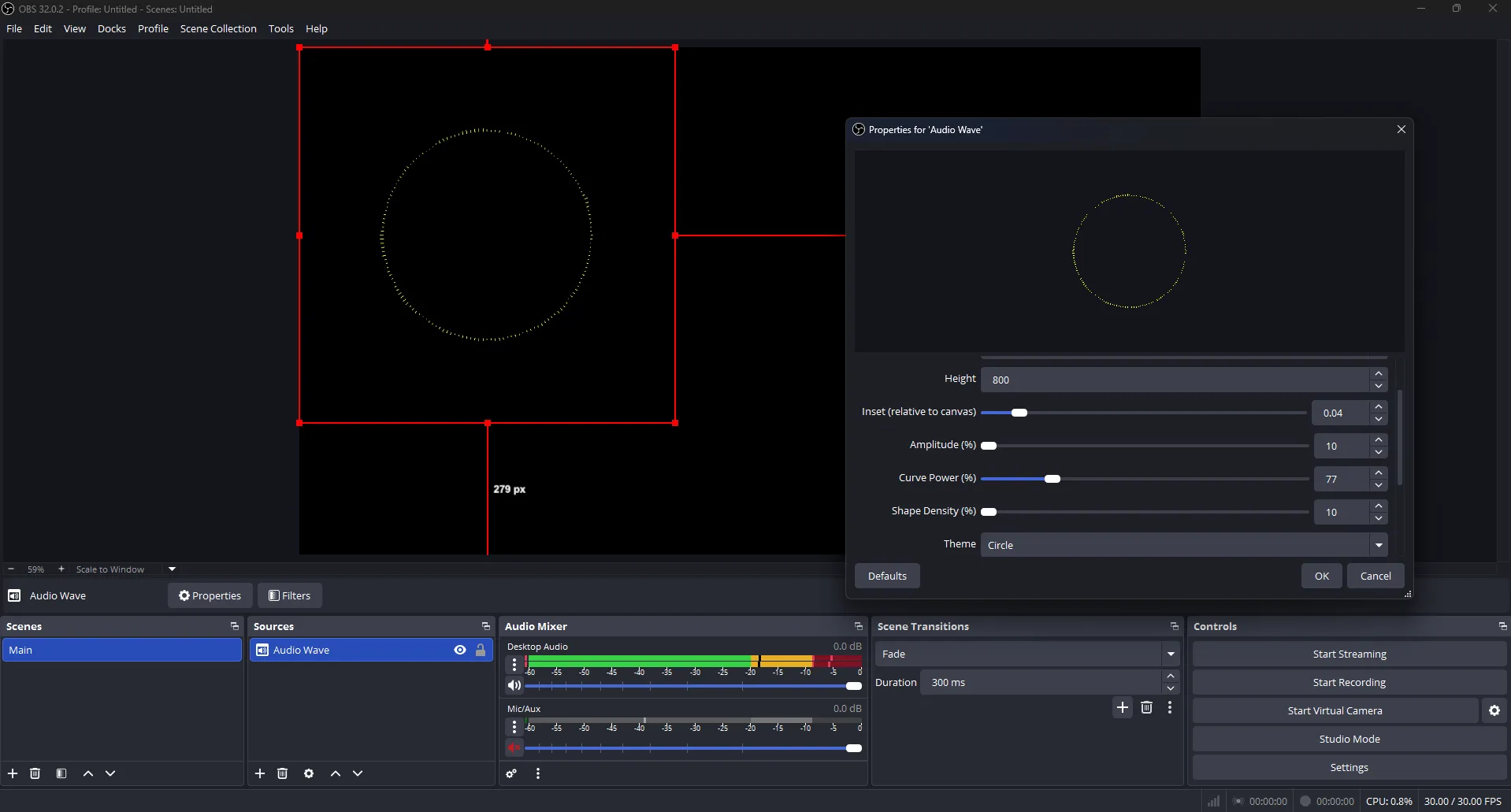
Wave Settings
Audio Wave Visualizer
Meet Audio Wave Visualizer, a lightweight OBS Studio plugin that adds a dedicated source called “Audio Wave (Simple)”. It listens to any audio you choose (mic, desktop, game, music) and renders clean, audio-reactive visuals directly inside OBS no browser sources, no scripts, no external tools. Just add the source, pick your audio, and dial in the look.
What It Does
The plugin generates a real-time visualizer layer you can position anywhere in your scene: subtle waves, bar-style meters, and shape-based outlines that react instantly to sound. Use it as a mic activity accent, a music visualizer, a “ring” around a webcam/avatar, or a clean reactive element for BRB / podcast layouts.
Compatibility Notice
This is an OBS plugin (not a script) that installs into OBS’ plugin directories. If you’re testing on macOS/Linux or using alternative packaging (e.g., Flatpak), follow the platform paths below. If anything behaves unexpectedly, share your OS + OBS version + steps to reproduce in the project’s issue tracker so it can be improved.
Installation
Setup is fast:
-
Download the latest release and extract it. You will typically find a binary such as:
audio-wave-visualizer.dll. -
Copy the plugin file into the correct OBS plugin folder:
- Windows (Standard):
C:\Program Files\obs-studio\obs-plugins\64bit - Windows (Portable):
obs-studio-portable\obs-plugins\64bit - macOS:
OBS.app/Contents/PlugIns(right-click OBS.app → Show Package Contents) - Linux (common):
/usr/lib/obs-pluginsor/usr/lib/x86_64-linux-gnu/obs-plugins - Flatpak:
~/.var/app/com.obsproject.Studio/config/obs-studio/plugins/
- Windows (Standard):
- Restart OBS Studio. Then add it from your scene sources list: Sources → + → Audio Wave (Simple).
Customization
Audio Wave Visualizer is built for fast iteration: you can tune the style in the source properties until it matches your overlay and your audio chain (gain, compressor, limiter, noise suppression, etc.). There’s no “one perfect preset” your audio levels and filters will affect how the wave behaves.
| Control | What it changes |
|---|---|
| Audio Source | Select which mic/desktop/game/music feed drives the visual. |
| Shape & Style | Switch between waves/bars and wrap visuals around shapes (e.g., circle, star, hexagon, diamond, etc.). |
| Wave Color | Pick the primary color used for the wave/bars. |
| Width & Height | Increase resolution for a cleaner look (higher values can cost more GPU). |
| Amplitude / Curve Power | Control sensitivity and the “punch” between quiet vs loud sounds. |
| Shape Density / Mirror | Adjust detail (points/bars count) and enable mirrored waves for a fuller style. |
Note: some options can be more resource intensive (for example, the project notes that certain rectangular-wave styling may require a stronger GPU for best results).
Features
- New OBS Source: “Audio Wave (Simple)” appears directly in your Sources list.
- Works with any audio: mic, desktop, game, music, or any configured OBS audio source.
- Multiple shapes & styles: waves, bars, and shape-wrapped visualizers for modern overlays.
- Real-time tuning: amplitude, curve, density, resolution, mirroring, and color controls.
- Low-friction workflow: plug-and-play source you can duplicate and layer for more complex looks.
Ideal Use Cases
- Webcam/Avatar ring: place a circular wave around your camera frame for a clean “live mic” accent.
- Music scenes: add a subtle visualizer near “Now Playing” elements.
- Podcast layouts: give each speaker a reactive visual layer tied to their audio.
- BRB/Starting Soon polish: add motion without heavy overlays or complex scene logic.
Community Videos
Creators talking about Audio Waves Visualizer.
Please log in to submit.
Preparing your download
Help keep this projects free
Your support funds hosting, updates, and new features for obscountdown.com tools.


15
seconds
Preparing Audio Waves Visualizer download URL…
If nothing happens, use the manual button below.
Your browser may block automatic redirects in some cases.