









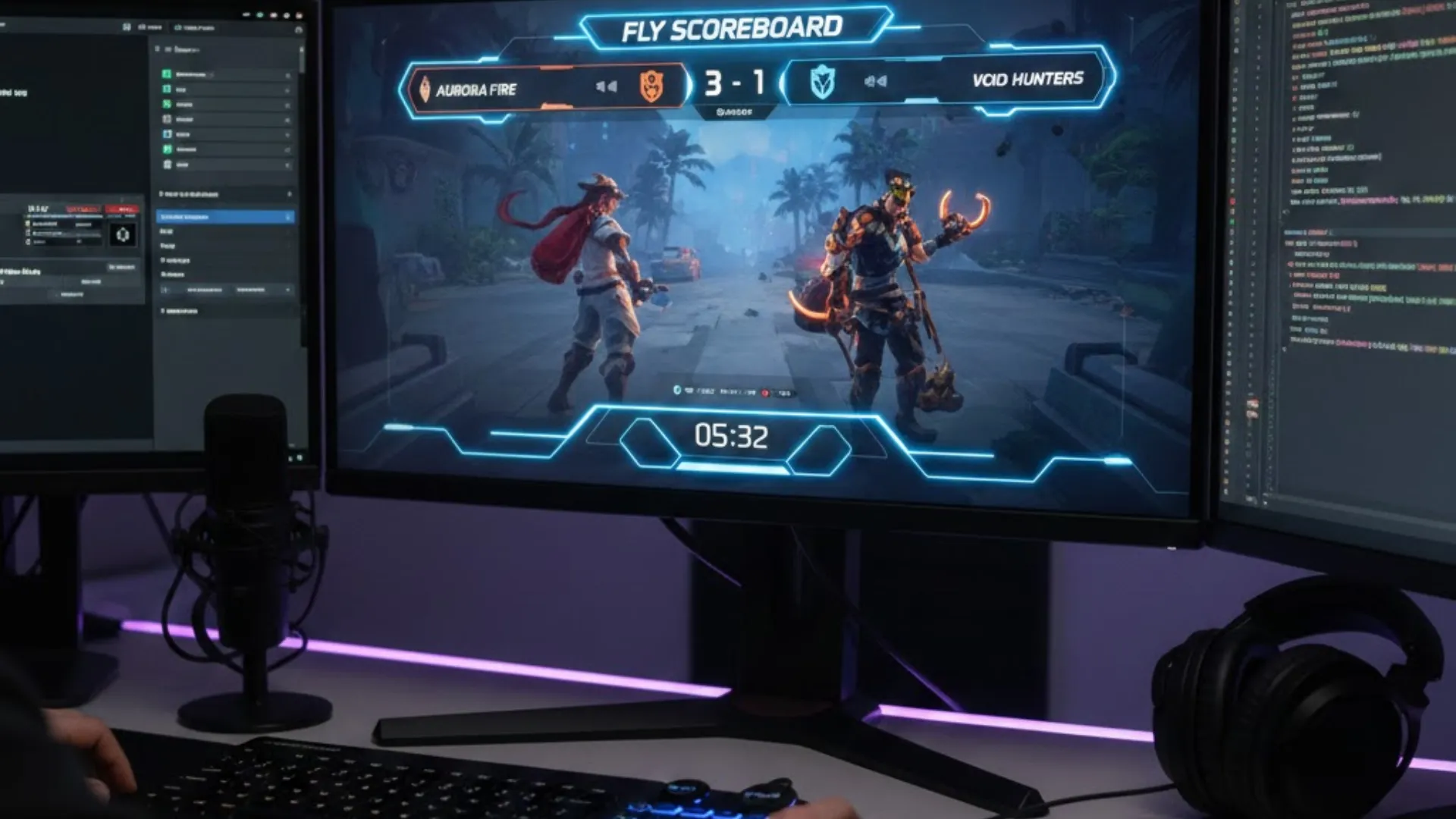
If you’ve ever watched a professional sports broadcast on ESPN or a major League of Legends tournament, you’ve seen the "Score Bug"-that sleek, informative graphic at the top of the screen that keeps you anchored to the game’s progress. For years, recreating that professional look in OBS Studio was a nightmare for independent streamers. You were either stuck with static text sources that looked amateurish or expensive external subscriptions that were hard to manage mid-game.
Enter Fly Scoreboard. Developed by Max at MML Tech, this isn’t just another "widget." It is a robust, data-driven plugin architecture that turns OBS into a legitimate broadcast powerhouse. In this guide, we’re going to look at why this specific tool has become the gold standard for sports and esports streamers, and how you can master it to give your audience a premium viewing experience.
The Philosophy of Fly Scoreboard: Data vs. Design
The genius of Fly Scoreboard lies in its separation of data and presentation. In basic OBS setups, your score is just a text source. If you want to change the font, you edit the source. If you want to change the color, you edit the source. It’s clunky and prone to errors.
Fly Scoreboard changes the game by using a Templating System. The plugin acts as a "Data Server" inside OBS. You enter the team names, the score, and the timer data into a dedicated Dock (a control panel). The plugin then "injects" that data into an HTML/CSS template. This means you can swap your entire scoreboard’s visual style-going from a minimalist "Dark Mode" to a flashy "NBA-style" look-in seconds, without ever having to re-type the current score or reset the clock. It’s professional-grade logic made accessible to everyone.
Installation: Getting the Engine Running
Because Fly Scoreboard is a true plugin rather than a simple script, the installation requires a bit of manual care, but it’s well worth the effort. Based on the developer's v3.0 updates, the process is cleaner than ever because it no longer requires a local web server to run in the background.
First, you’ll need to grab the latest release from the official MML Tools site. You’ll receive a zip file containing a bin
folder and a data folder. The DLL file from the bin folder needs to go into your OBS Studio
installation directory (usually under Program Files/obs-studio/obs-plugins/64bit).
The data folder is where your creative work lives. I recommend creating a dedicated folder on
your PC specifically for "OBS Resources" and placing the overlay folder there. Once you restart OBS, you
simply go to the Docs menu and enable Fly Score Dock. The first thing you
must do is click the "Set Resources Folder" button in the dock and point it to where you saved that overlay
folder. This "handshake" between the dock and your files is what allows the real-time updates to happen.
Comprehensive guide on the templating logic and placeholder system.
Step-by-step walkthrough of the v3.0 installation and UI.
Managing the Match: The Streamer's Workflow
Imagine you’re live. The game is fast, and you’re trying to commentate while managing the stream. You don't have time to look for a specific browser tab to update a score. This is where the Fly Score Dock shines. It sits right inside your OBS layout.
1. Team Management
In the "Teams" tab, you can set the Home and Away titles, subtitles (great for team records like 10-0), and colors. One of the most underrated features is the Swap Teams button. In many sports, teams switch sides of the field at halftime. Clicking swap instantly moves the scores and logos to the correct side of your graphic, preventing that "wait, which side is which?" confusion for your viewers.
2. The Multi-Timer System
Most basic scoreboards give you one clock. Fly Scoreboard gives you several. You can have a main match timer that counts up (for Soccer/Rugby) or down (for American Football/Basketball). But you can also have secondary timers for "Timeouts," "Shot Clocks," or "Intermission Countdowns." Each timer can be started, paused, or reset independently within the dock.
3. Custom Fields for Deep Stats
If you're streaming esports like League of Legends or Valorant, just showing the score isn't enough. You might want to track "Towers Destroyed," "Dragons Slain," or "Rounds Won." Fly Scoreboard allows you to create custom fields. You can label these fields whatever you like, and they will appear as easy-to-use +/- buttons in your dock. This level of detail is what makes a stream go from "guy in his basement" to "professional league broadcast."
Designing Your Scoreboard: Unleashing CSS Power
If the standard look doesn't fit your brand, you aren't stuck with it. Fly Scoreboard uses simple HTML/CSS
for its visuals. The plugin uses "placeholders"-bits of code like {{teamX.score}}. Wherever you
put that code in your HTML file, the actual live score will appear.
For the non-coders out there, this is a game-changer because you can use Modern AI Tools to
help. You can literally copy the placeholder list from the developer's documentation, paste it into an AI,
and say: "Design me a sleek, neon-blue esports scoreboard using these placeholders with a glass-morphism
effect." The AI will give you the CSS, you paste it into your style.css file, and you
have a custom, high-end graphic that would usually cost hundreds of dollars from a design agency.
Automation: Hotkeys and Stream Deck
To truly reach "Pro Status," you shouldn't be using your mouse to update the score at all. Fly Scoreboard integrates perfectly with OBS Hotkeys. In the OBS Settings menu, you’ll find entries for every button in the Fly Scoreboard dock. You can map "Home Score +1" to a specific key on your keyboard or-better yet-a button on your Elgato Stream Deck.
This allows you to keep your eyes on the game and your hands on your controller or mic. When a goal is scored, you just tap a physical button on your desk, and your viewers see the graphic animate and the numbers climb instantly. It’s a tactile, satisfying way to run a production.
Watch the Fly Scoreboard visual showcase to see various design possibilities.
Troubleshooting & Common Questions
Even with a tool this polished, you might run into a few hurdles. Here are the most common tips for a smooth experience:
- Scoreboard not showing? Ensure your Browser Source in OBS is set to "Local File" and
points to the
index.htmlinside your Fly Scoreboard overlay folder. Also, check that you’ve clicked "Set Resources Folder" in the Dock. - Timers resetting? Fly Scoreboard actually saves your timer state. If OBS crashes, when you reopen it, the timer will often be right where you left it. However, always make sure you hit the "Reset" button between different matches to clear the cache.
- Font issues? If you want to use a specific font (like your team’s custom font), you
need to make sure it’s either installed on your system or linked via Google Fonts in your
style.cssfile.
Final Thoughts: Why Fly Scoreboard Wins
At the end of the day, live streaming is about storytelling. The scoreboard is the narrator that tells your audience who is winning, how much time is left, and what the stakes are. By using a tool like Fly Scoreboard, you are removing the friction between you and your audience. You are providing clarity, professionalism, and excitement.
Whether you are a local high school volunteer streaming the Friday night football game or an aspiring esports caster, this plugin provides the infrastructure you need to succeed. It’s free, it’s powerful, and it’s built by a developer who truly understands the needs of the OBS community.
Ready to get started?
Download the latest version of Fly Scoreboard and start building your custom overlay today. Don't forget to visit the official resources for more templates and community support.
Article written to help streamers master the art of live sports production. Support the developers by subscribing to MML Tech on YouTube.