







I Released a New Free OBS Studio Plugin: Instant Highlight Source Draw
I’m happy to announce the release of a brand-new OBS Studio plugin, available completely for free, designed to solve a very common problem for streamers, educators, and content creators: how to quickly highlight things on screen while live, without leaving OBS or relying on external software.
The plugin is called Instant Highlight Source Draw, and it allows you to draw directly on a source in real time using simple shapes like squares, circles, arrows, and hearts. Whether you’re explaining something in a tutorial, breaking down gameplay, reviewing footage, or presenting information live, this plugin makes visual callouts fast, clean, and intuitive.
Why I Built This Plugin
During live streams and recorded tutorials, there’s often a need to guide the viewer’s attention. You might want to point to a specific button, highlight a section of the screen, or emphasize an important moment without stopping your flow. While OBS already offers powerful compositing tools, it doesn’t provide an easy, built-in way to annotate or draw directly on a source in real time.
Most existing solutions rely on external drawing apps, browser overlays, or complicated scene setups. These approaches often break immersion, require window switching, or introduce unnecessary latency. I wanted something that stayed inside OBS, worked instantly, and felt like a natural extension of the software.
That idea led to Instant Highlight Source Draw: a focused, lightweight plugin that does one thing well—letting you draw on a source instantly when you need it.
What Instant Highlight Source Draw Does
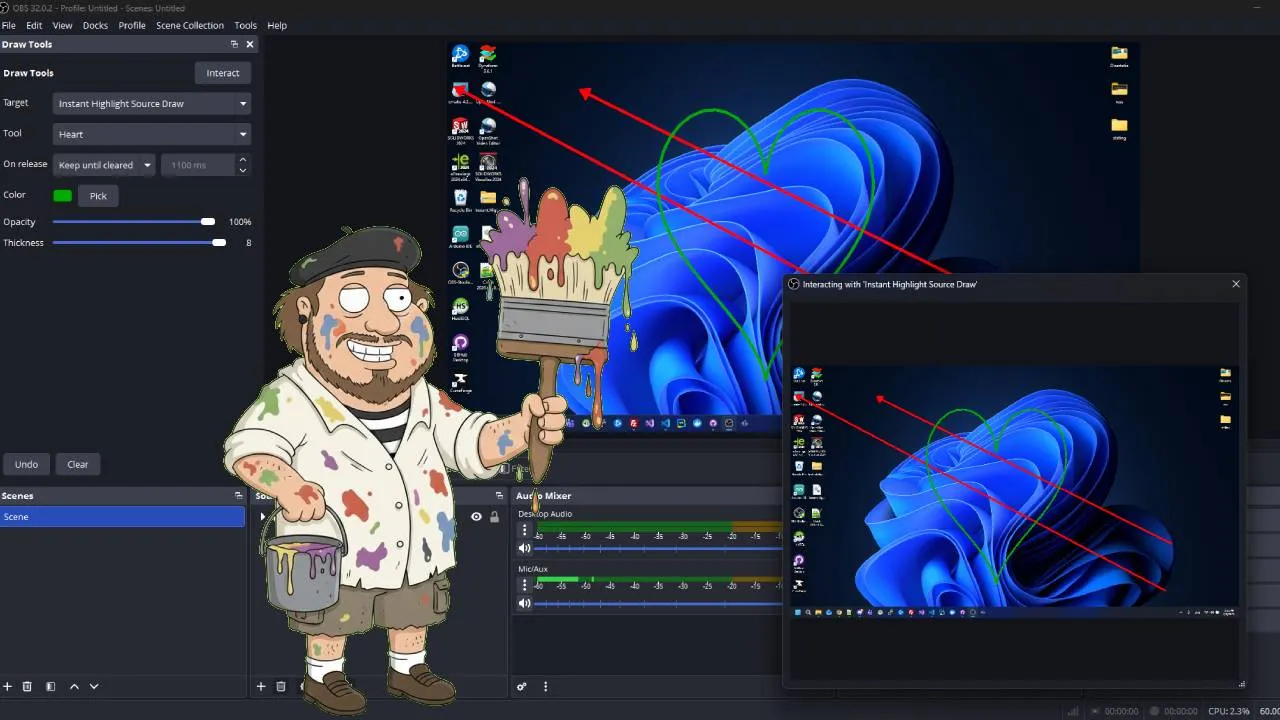
The plugin introduces a new Draw Source along with a dedicated Draw Tools Dock. You add the Draw Source to your scene like any other source, then control it from the dock. When you open the source’s Interact window, you can draw directly on top of the content in real time.
Everything happens within OBS. There are no external windows to manage, no browser overlays to sync, and no extra capture sources required. This keeps your setup simple and reliable, especially during live productions.
In the video above, I walk through how to install the plugin, how to add the Draw Source, and how to use each tool effectively during a stream or recording. If you prefer learning visually, this tutorial covers the full workflow step by step.
Key Features Explained
Real-Time Drawing
Draw directly on a source using OBS Source Interaction. As soon as you click and drag, your shapes appear on screen in real time, making it ideal for live commentary and explanations.
Multiple Drawing Tools
Choose between squares, circles, arrows, hearts, or an eraser tool. Each tool is designed for fast visual communication, whether you’re highlighting UI elements or pointing out details.
Keep or Fade Behavior
You can decide what happens when you release the mouse. Use Keep until cleared to persist drawings indefinitely, or Fade after release to automatically remove highlights after a set duration.
Appearance Controls
Adjust color, opacity, and thickness directly from the dock. This lets you match your highlights to your overlay style or brand without interrupting your stream.
The Draw Tools Dock Workflow
One of the most important design goals was speed. The Draw Tools Dock gives you access to everything you need from a single place: selecting the target Draw Source, choosing tools, changing colors, toggling release behavior, and performing quick actions like Undo or Clear.
The dock is persistent, meaning OBS remembers its visibility and position across restarts. Once you enable it, it stays part of your workspace. This is especially useful for creators who stream regularly and want a consistent layout every time they launch OBS.
Because all settings are applied directly to the selected Draw Source, you can use multiple Draw Sources in different scenes and switch between them without reconfiguring your tools each time.
How to Use the Plugin in Practice
A typical workflow looks like this:
- Add a Draw Source to your scene.
- Open View → Docks → Draw Tools.
- Select the Draw Source you want to control.
- Choose a drawing tool and adjust color, opacity, and thickness.
- Click Interact and draw directly on the source.
- Use Undo, Clear, or the Eraser tool to manage what stays on screen.
This workflow works equally well for live streams and recordings, making it a versatile tool regardless of your content style.
Best Use Cases
Instant Highlight Source Draw is intentionally flexible. Some of the most common use cases include:
- Tutorials: Highlight buttons, menus, and steps while explaining software or workflows.
- Game Streaming: Point out map locations, strategies, or UI elements in real time.
- Coaching and Reviews: Draw attention to mistakes, patterns, or improvements during analysis.
- Presentations: Annotate slides or screen shares without leaving OBS.
- Live Commentary: Make quick callouts during events, reactions, or breakdowns.
Free, Focused, and Built for OBS
This plugin is released for free because my goal with OBSCountdown tools has always been to help creators build better, more professional streams without unnecessary barriers. Instant Highlight Source Draw is intentionally focused on a single task, avoiding feature bloat and keeping the experience responsive and reliable.
You can download the plugin and find more OBS tools, plugins, and resources on my website: https://obscountdown.com. I also maintain a streaming community where users can share feedback, ideas, and improvements for current and future tools.
What’s Next
As with all my plugins, this is just the beginning. Feedback from real users helps shape future updates, whether that means refinements to existing tools or entirely new features. If you try Instant Highlight Source Draw and find it useful, let me know how you’re using it and what you’d like to see next.
I hope this plugin helps you communicate more clearly on stream, speed up your workflow, and keep everything comfortably inside OBS Studio.