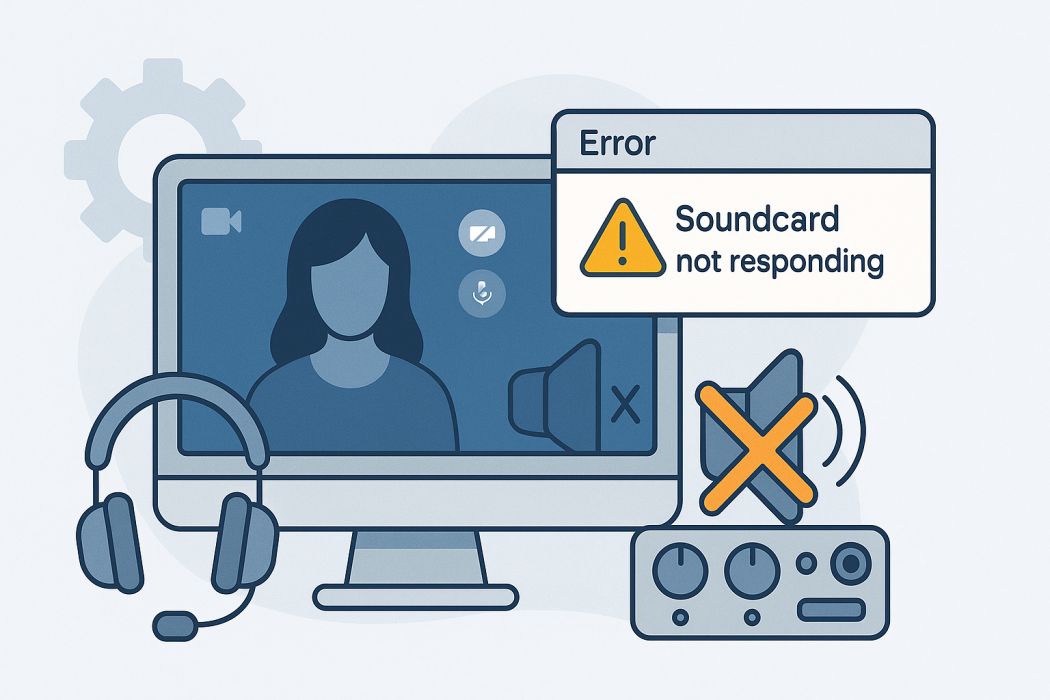
Google Meet “Soundcard Not Responding” The Complete Fix (Windows & macOS)
Fix Google Meet “Soundcard Not Responding” (Mic & Speaker Not Working)
A practical, copy-and-paste checklist to restore audio input/output in Google Meet on Windows and macOS — including drivers, permissions, exclusive mode, and streaming setups (OBS, Voicemeeter, virtual cables).
1 Check Google Meet audio settings
Inside your Meet call, click ⚙️ Settings → Audio:
- Microphone: choose the exact device (avoid “Default”). Speak and confirm the input meter moves.
- Speakers: select your headphones/speakers/USB interface and click Test.
- If a device shows Not responding or is missing, continue to the next steps.
2 Restart browser & audio services
Close all Meet tabs and fully exit your browser. On Windows, restart audio services:
- Press Win + R → type services.msc → Enter.
- Find Windows Audio → right-click → Restart.
- Repeat for Windows Audio Endpoint Builder.
Reopen the browser and rejoin the Meet.
3 Verify system sound devices (Windows & macOS)
Windows
- Right-click 🔊 → Sound settings → set the correct Input and Output.
- Open More sound settings → Recording tab → ensure the mic is Enabled and shows green bars when speaking.
- Check Privacy & security → Microphone and allow apps/browsers to access the mic.
macOS
- System Settings → Sound: pick the right input/output devices and test levels.
- Privacy & Security → Microphone: allow your browser (Chrome/Edge/Firefox).
- If you use audio routing apps, ensure the virtual device is selected and active.
4 Reset browser permissions for Meet
Ensure Meet is allowed to use your microphone and play sound:
- In Chrome address bar, open chrome://settings/content/microphone and confirm https://meet.google.com is allowed.
- During a call, click the 🔒 padlock → allow Microphone and Sound, then refresh.
5 Update or reinstall audio drivers (Windows)
- Press Win + X → Device Manager.
- Expand Sound, video and game controllers → right-click your device → Update driver.
- If issues persist: Uninstall device → restart Windows to auto-reinstall.
6 Turn off enhancements & exclusive mode (Windows)
Some drivers lock the device in a mode Meet can’t access:
- More sound settings → select your playback/recording device → Properties → Advanced.
- Uncheck Enable audio enhancements.
- Uncheck Allow applications to take exclusive control of this device.
- Click Apply and retest Meet.
7 Try another browser or Incognito
Open the Meet link in Incognito (Chrome) or a different browser (Edge/Firefox/Brave). If audio works there, a Chrome extension or cached permission is likely the culprit.
8 Special case: virtual audio, OBS, Voicemeeter
Virtual cables & mixers
- Confirm the virtual device (e.g., VB-Audio, BlackHole) is running and not muted.
- Select the virtual device as the default input/output in your OS and in Meet.
- Ensure sample rates match (44.1 vs 48 kHz) across apps to avoid “device busy”.
OBS / Voicemeeter exclusive access
- In Windows device Advanced tab, disable exclusive mode.
- In OBS/Voicemeeter, make sure the device isn’t locked in WASAPI Exclusive.
- Try routing OBS → Monitor and Output to a virtual cable that Meet uses as microphone.
9 Clear Meet cache & cookies
Reset stale permissions and device bindings:
chrome://settings/clearBrowserData- Clear Cached images and files.
- Clear cookies/site data specifically for meet.google.com.
- Restart the browser and rejoin the meeting.
10 Final checks & sanity tests
- Reboot your computer.
- Move your USB interface to a different port (prefer a direct motherboard port).
-
Test the same mic/speakers in Zoom, Discord, or system voice recorder:
- If they fail everywhere ➜ likely driver or hardware issue.
- If they work elsewhere but not in Meet ➜ browser permissions or cache.
? FAQ & edge cases
Summary
Start with Meet’s Audio settings, then work outward: restart services → verify OS devices → reset browser permissions → refresh drivers → disable enhancements/exclusive mode → try Incognito/another browser. For virtual/USB setups, align sample rates and avoid exclusive locks. These steps resolve nearly all “soundcard not responding” cases.